
Viewing A Trip
Viewing A Trip In RouteGenie
There are many different instances in which you would view a trip in RouteGenie, From the Dispatch and Pre-Assign interfaces to reservations it is one of the most common objects you are going to encounter.
Looking at a trip in the log
Lets take a look at what trips look like as you encounter them throughout the web app, no matter what interface your looking at trips appear in a similar fashion. A horizontal log/list.

While the way the log is displayed my vary slightly depending on the interface for the most part it looks like what is shown above (the black boxes are just blocking PII) and regardless of the slight variances the way information is displayed is uniform across all interfaces.
Trip Status and Trip ID
Trip ID
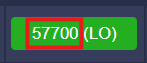
One of the first things you will notice on any given trip line is a colored box with a number on it. That number is what is known as the Trip ID. Each trip will have a unique one and depending on the broker some of them may differ in the way they are generated.
Trip Status
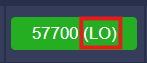
Next to the Trip ID we see what is called the Trip Status. It is displayed in an abbreviation, you will also notice that the background color changes depending on the abbreviation shown. While there are a lot of options dont worry, its nothing too complicated.
Next we will take a look at all the different options for Trip Status.
Unassigned (UA)

This is an unassigned trip, it is the initial status a trip will generally take once entered in to the system. It means that the trip has been entered/scheduled in to our RG instance but there is not currently a driver assigned to it.
Assigning (AG)

When a trip has been assigned to a driver and is in the process of being assigned you my briefly see this status, if the trip is being offered to the driver and they have not accepted it yet you will come across the next one.
Offering (OF)
Missing Screen Shot
This status will briefly show while a trip is in limbo and the system is waiting for the driver to accept the offer. This status can be skipped many ways but we can cover that in different guides.
Pre-Assigned (PA)

This is the status that is assigned to a trip when a trip has been assigned via the pre-assign mode. There are many differences between this and simply assigning a trip but we wont get into that here. This status will only show while a schedule is still in pre-assign mode. Once it becomes the current day and drivers log in to their shifts and start the trips will change to AS(Assigned).
Assigned (AS)

Once an order has been assigned for good it will obtain this status, this means the order is assigned, on a current day, and everything is in good standing.
In Route (IR)

Once a driver is ready to start working on a trip they will hit a button on their app that tells the system they are "In Route" (IR). This means the driver is on the way.
Loaded (LO)

Once the driver has arrived at the pickup location and the passenger is on board the vehicle the driver will change the status to "Loaded" (LO) via the driver app.
Will Call (WC)

This status can be a little frustrating because it is not viewable in the pre-assign interface. Will Call (WC) is used when the client has no clue what time they will be ready for a pickup/return ride. This is generally set by a broker via the API or if we fill out a trip with no pick up time entered on the return. At lakeshore we try our best to only use this when absolutely required as they often become problematic.
Canceled (CA)

Just as you would expect this means the trip has been Canceled, the letters underneath can give us an idea of the method (iSi = canceled internally, LGC = canceled by LogistiCare, MTM = canceled by MTM, etc.). If a trip is accidentally cancelled, dont worry they can always be re instated.
Trips can not be removed from RouteGenie once entered in to the system. CA is the end of the line for a trip, it will always remain in the system.
No Show (NS)

Another version of cancelled, No Show (NS) indicates that it was the clients fault/doing. This useful for charging cancelation fees and things of that ilk. This is sometimes automatically applied by the system when a trip is cancelled very close to the pickup time.
Completed (CO)

Last but not least, Completed (CO), means that an order has been completed in good standing.