
Hola!
Welcome To The Office At Lakeshore Transportation!
No matter what your role will be there are quite a few things to get out of the way as you learn the roles. From our communication stack to logging in to RouteGenie for the first time it all may seem a little overwhelming but that is why we built this knowledge base! All the information a new employee will need to get started can be found right here, and then some!
Before You Get Started
Before you get underway one of the first things you should make sure of is that your company email has been set up.
You will need your company email for all the other applications we use at lakeshore, including this one! You wont be able to get started without it. So if for some reason you have yet to receive that put things on hold and go see one of the office administrators to help you with it.
You will also need the current password for the general company inbox info@lakeshoretransportwi.com so make sure to get that while you are speaking with them.
Once an admin has your Gmail account set up go ahead and get logged in for the first time.
Adding The Company Email To Your Account
Once you have logged into your shiny new company email we can get you logged into the company email, this is our main email account for the office and it is where we receive emails for things like trips and billing information.
You may be wondering how you log in to more than one email account at a time?
Well Gmail makes that pretty simple for us by allowing us to keep a "keychain" of email addresses!
First go to your inbox for your Gmail account.
Then as shown in the image below click on the section outlined in red:
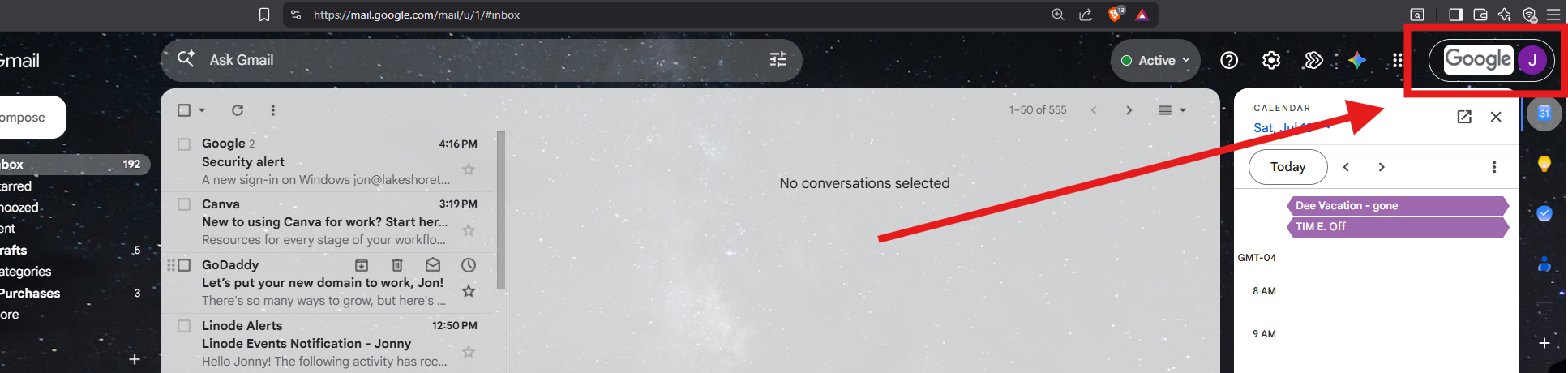
Next, click on "Add another account" as shown below:
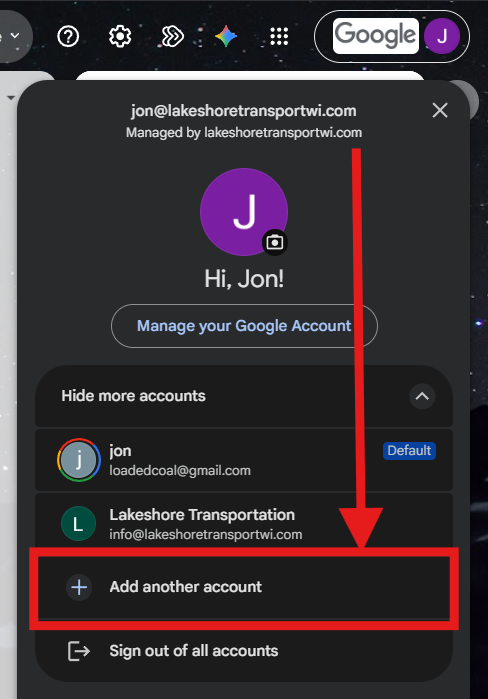
As you can see I already have multiple accounts on my keychain, including my personal, after you click on the "Add another account" button as shown above you can follow the prompts to add the office email.
While your job may require you to use the office email regularly for things like booking trips you should use your personal work email for logging in to applications and sending emails from yourself (anything that is not a generalized office email).
Getting Slack Setup
Now that your email accounts have been set up you should also log into slack for the first time as it is one of the main ways we generally communicate with each other in the office.
Follow the link above to download slack and then log in with your personal work email.
You can customize your slack any way you like, that is up to you but once you get log in make sure to go to the channel "all-lakeshore-transportation" and introduce yourself!
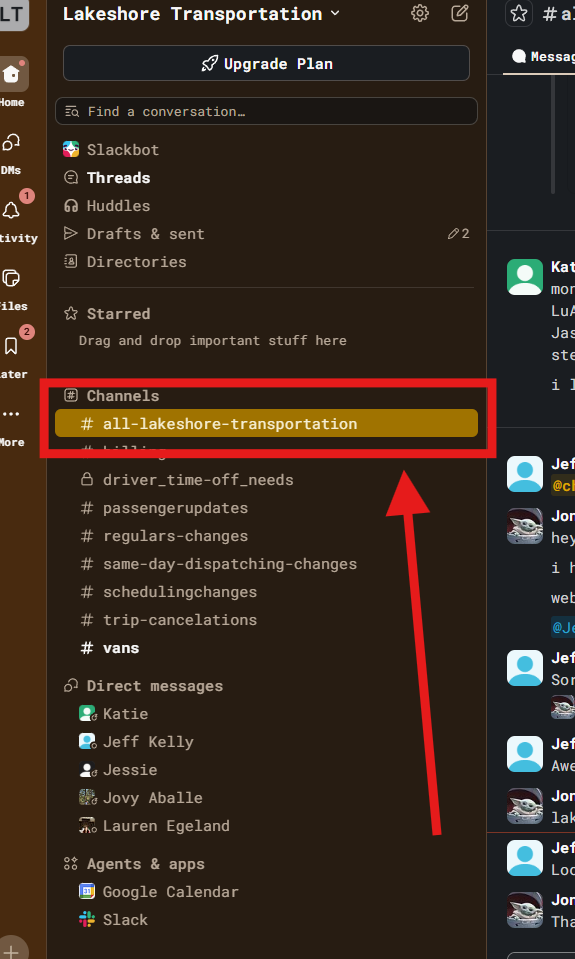
If you dont see all the channels you see above dont panic, once you introduce yourself you will be added to any required channels!
Organizing Conversation
One of the reasons we use slack is to keep the conversations we have organized and searchable. That is why we have different channels as well, it makes it really easy to go back and find information later and as you'll learn quickly, for a small team, we really do share A LOT of information.
If it all seems a little confusing at first just ask for help, but dont worry ... it will make sense pretty quick.
A few more things about slack ...
To message someone privately go to the Direct messages column on the the side and send them a message, you can also alternatively hover over their name in one of the chat rooms and then select message.
Lastly to call someone's name or notify them directly use the @ symbol like this: @jonny ... doing this will ensure the user is notified of the message and it can be super useful when we are busy.