# Navigating RG A High Level Overview

A high level overview of RG and how to navigate the website.

# Getting Logged In

## Getting Your Credentials

Getting logged in to RG for the first time will require that a user account has been set up on your behalf. If this has not taken place yet you can ask the office administrator to do this for you.

Your personal work email should be used to create your RG login.

The administrator who creates your account will create a temporary password for you, once you get set up you should change this.

## Logging In

Logging in for the first time is pretty simple, once you have your new credentials in hand head on over to this domain: [https://lakeshoretranspo.routegenie.com](https://lakeshoretranspo.routegenie.com)

[![image.png](https://lakeshorekb.xyz/uploads/images/gallery/2026-07/scaled-1680-/DV5image.png)](https://lakeshorekb.xyz/uploads/images/gallery/2026-07/DV5image.png)

Once you have entered in your credentials click on the white log in button below!

And that is that, you will now be logged in to RG. The browser will remember that your logged in and you can open up as many tabs as you like since it is cloud based.

You will be logged out automatically after about a half hour of inactivity so either memorize your password or save it to a keychain.

Speaking of passwords from time to time the RG system will require you to update your password. You can also change your password on your own whenever you need to, lets go over that next.

## Changing Your Password

<p class="callout info">This section assumes your RG account has been set up and your selected privileges allow you to make changes like this</p>

So you may be thinking that if you wanted to change your password it would be like any other website and you would just head over to the "Settings" menu, right?

Well, not in RouteGenie.

While it is not much more complicated than that it can be a little difficult to locate if you dont know where to look.

First lets assume you are looking at the website from the main page, you will see a large menu on the left hand side of the website with plenty of options, first we will select the dropdown menu "Users" shown below:

[![image.png](https://lakeshorekb.xyz/uploads/images/gallery/2026-07/scaled-1680-/wMUimage.png)](https://lakeshorekb.xyz/uploads/images/gallery/2026-07/wMUimage.png)
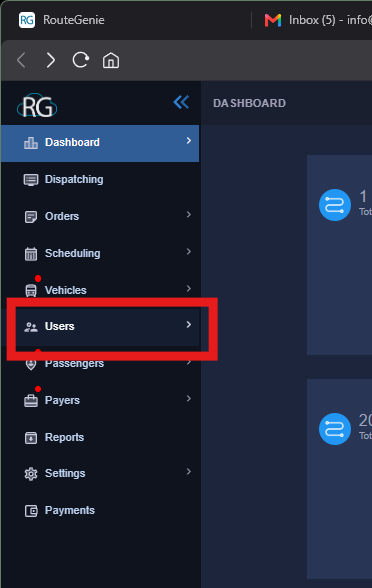
Then after you open that menu you will again select "Users" from the dropdown list as shown below:

[![image.png](https://lakeshorekb.xyz/uploads/images/gallery/2026-07/scaled-1680-/gUeimage.png)](https://lakeshorekb.xyz/uploads/images/gallery/2026-07/gUeimage.png)
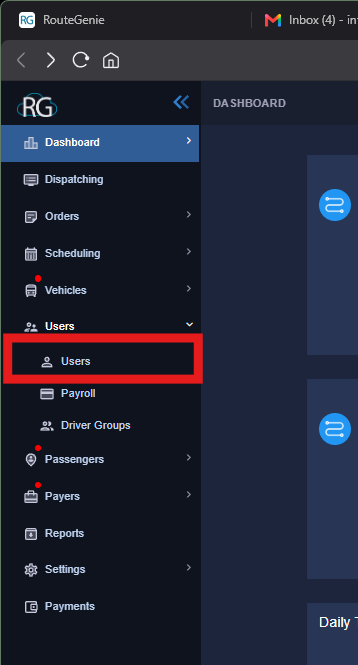
Once you have made your selection from the dropdown menu the user interface will open up:

[![image.png](https://lakeshorekb.xyz/uploads/images/gallery/2026-07/scaled-1680-/Astimage.png)](https://lakeshorekb.xyz/uploads/images/gallery/2026-07/Astimage.png)
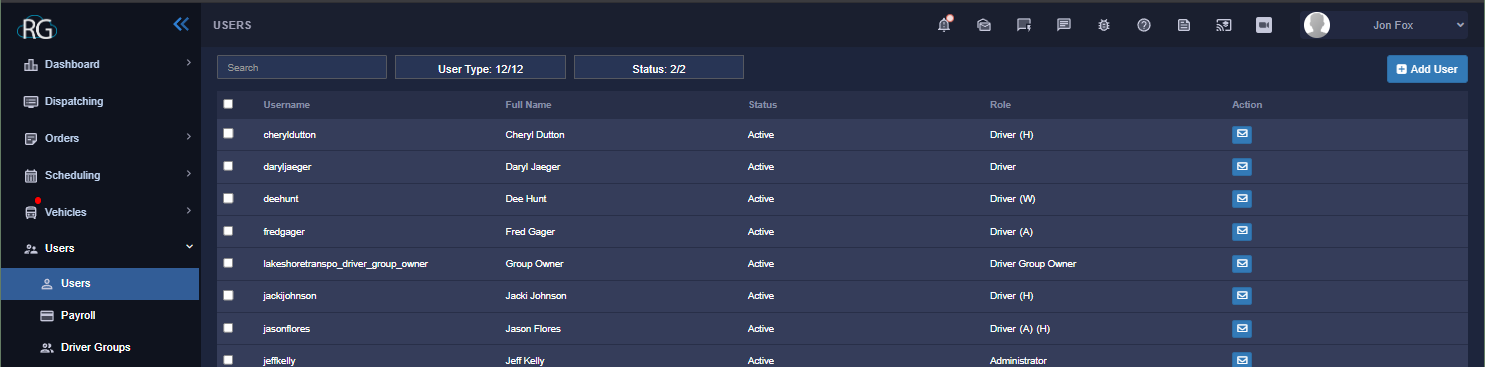
As shown above a list of users will pop up, there is a lot of different things we can do here but for now we are just going to focus on the search bar. Go to the search bar and type in your username. Once you have located your username in the list click on it as shown below:

[![image.png](https://lakeshorekb.xyz/uploads/images/gallery/2026-07/scaled-1680-/cfwimage.png)](https://lakeshorekb.xyz/uploads/images/gallery/2026-07/cfwimage.png)
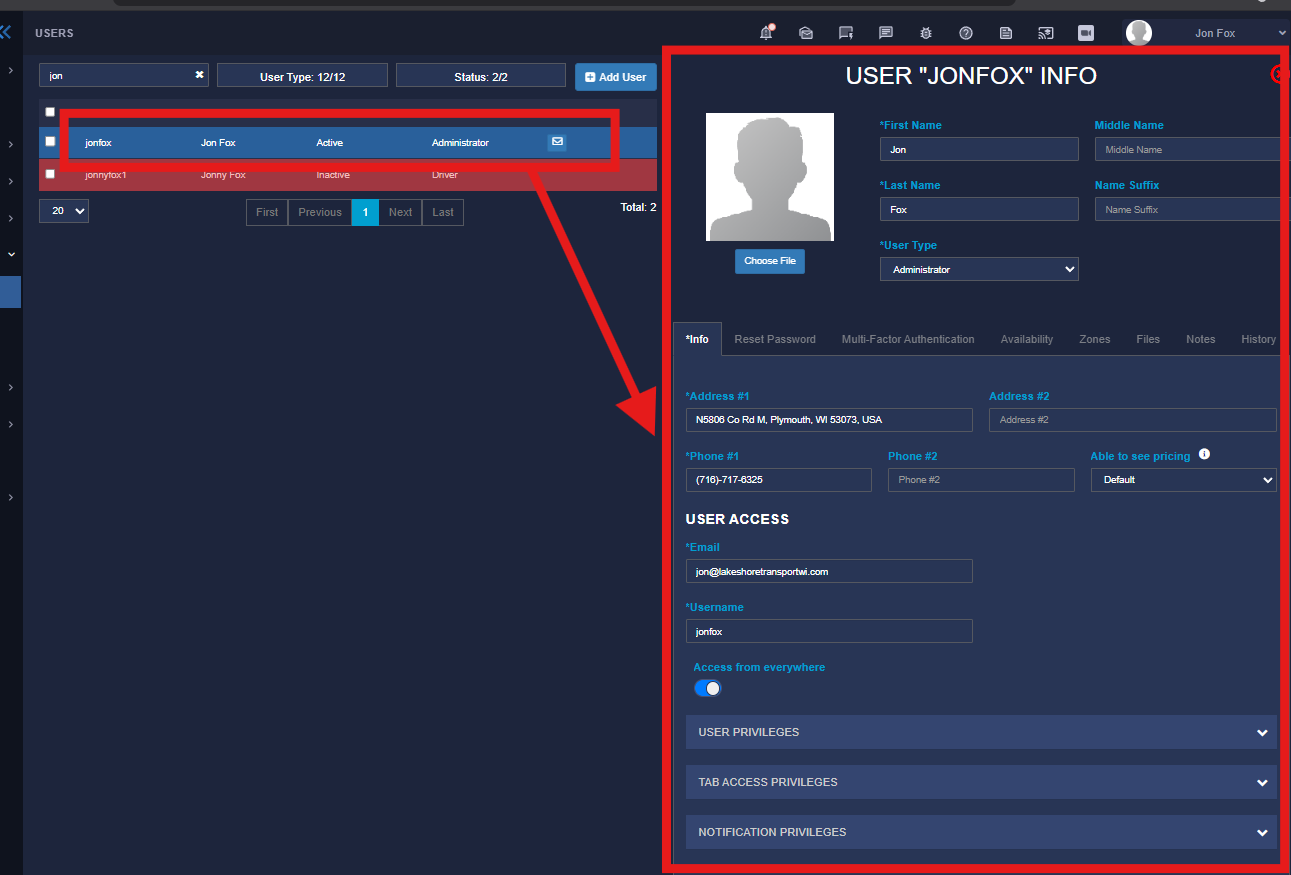
From here your user menu will pop open and you will have access to all sorts of options we are going to focus on the tabs in the middle of the user profile, from that group of tabs select "Reset Password" shown below:

[![image.png](https://lakeshorekb.xyz/uploads/images/gallery/2026-07/scaled-1680-/0n8image.png)](https://lakeshorekb.xyz/uploads/images/gallery/2026-07/0n8image.png)
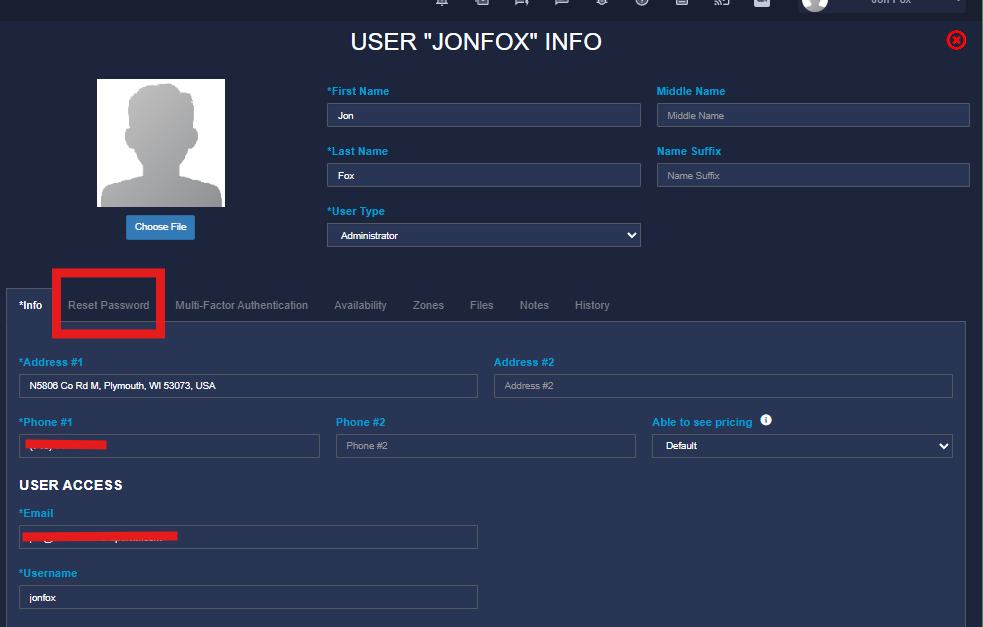
From here you will now have the option to change your password:

[![image.png](https://lakeshorekb.xyz/uploads/images/gallery/2026-07/scaled-1680-/Ziaimage.png)](https://lakeshorekb.xyz/uploads/images/gallery/2026-07/Ziaimage.png)
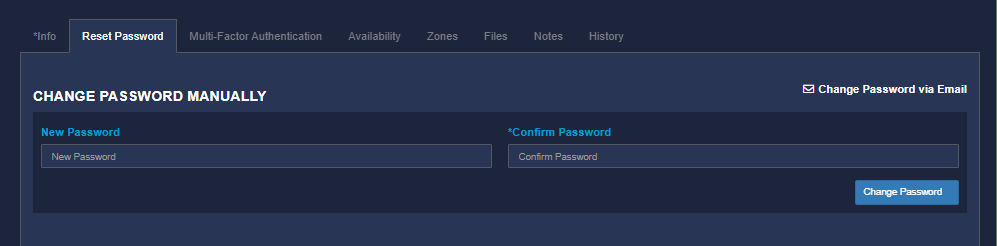
Simply enter a new password and select the change password button below once you are done!

#### Dont Have Access (Admin Reset)? 

[![image.png](https://lakeshorekb.xyz/uploads/images/gallery/2026-07/scaled-1680-/u9Qimage.png)](https://lakeshorekb.xyz/uploads/images/gallery/2026-07/u9Qimage.png)

You can also choose to reset your password via email but this is really a tool for administrators to send a reset to an employee that does not have access to these settings.

Clicking that option will send an email to the employee with a temporary password for them, once they login with the temporary password they will be able to then reset their password privately.

# Navigating RG

## **Welcome**

When you first log in to RouteGenie this is what you will see more or less:

[![image.png](https://lakeshorekb.xyz/uploads/images/gallery/2026-07/scaled-1680-/O8aimage.png)](https://lakeshorekb.xyz/uploads/images/gallery/2026-07/O8aimage.png)
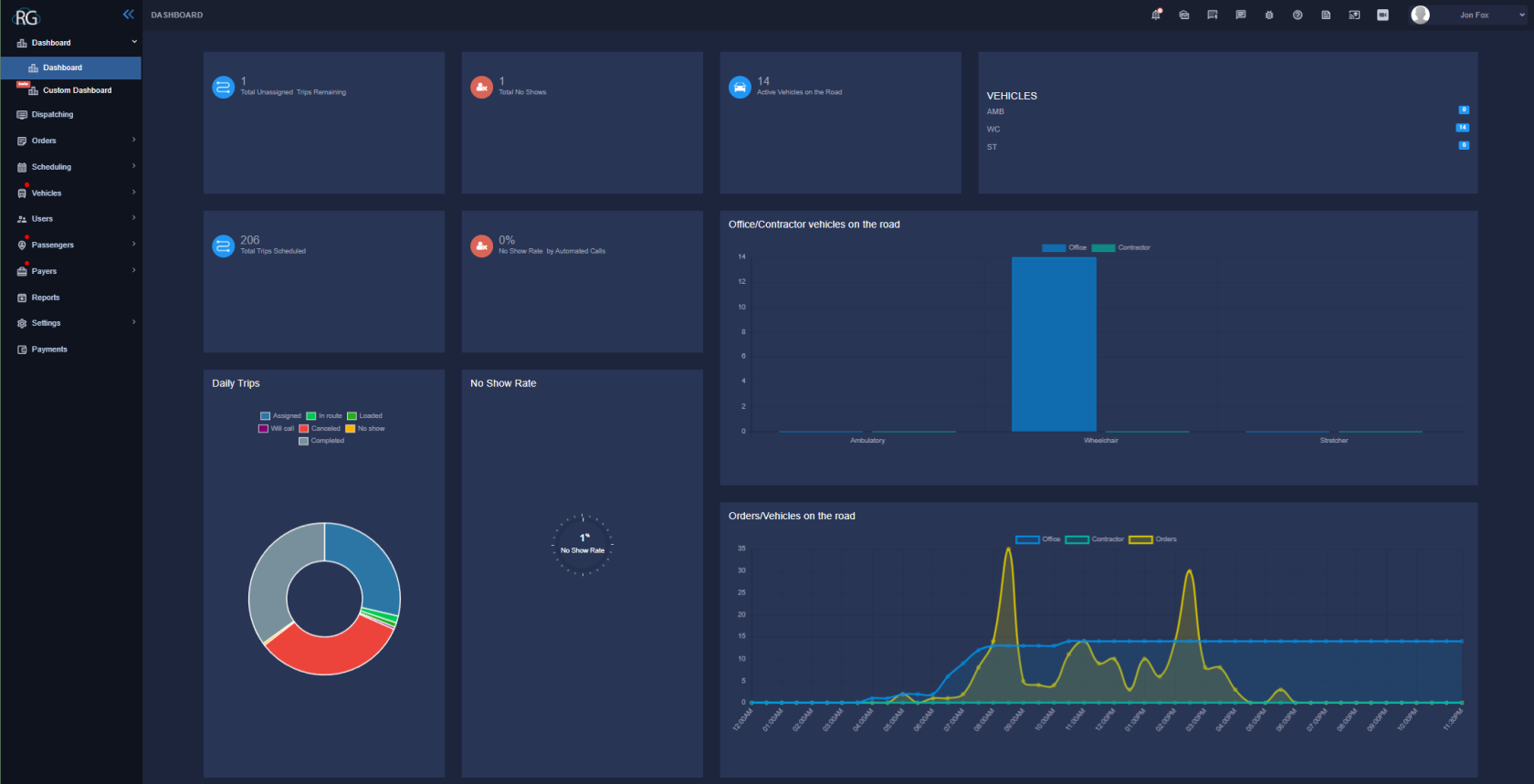
There is a lot going on here but lets work from left to right.

One of the first things you are going to notice is a navigation bar fixed on the left of the window with the "RG" logo at the top.

On the top right we also see a cluster of icons as well as a drop down menu for personal settings the options found up here house things like an inbox for systemwide messages, the notification tray, bug report, and other options of the like.

The focal point on display is what RG refers to as the Dashboard, there is both a pre-built dashboard and the ability to construct your own. The one featured when you open the website is the prebuilt one. To construct your own you must choose it from the drop down on the side, we will talk more about that later.

## **Navigation Bar**

The Navigation Bar on the left is how you will get around the RG website.

[![image.png](https://lakeshorekb.xyz/uploads/images/gallery/2026-07/scaled-1680-/nRYimage.png)](https://lakeshorekb.xyz/uploads/images/gallery/2026-07/nRYimage.png)
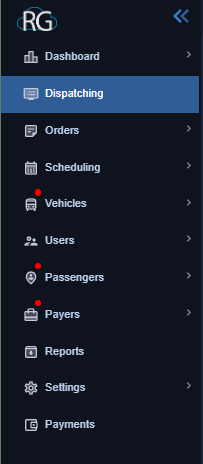
As you can see above the navigation bar is made up of multiple drop down menus, each leading to multiple options, clicking them will open the related interface.

Lets go over them from top to bottom, while we wont take a deep dive on these sections here (they will each have their own article) we will go over what they house and how to navigate them.

### **Dashboard**

We already talked about the Dashboard section above a little bit. This is one of the few sections we will not go over in a separate article as it does not really require one.

[![image.png](https://lakeshorekb.xyz/uploads/images/gallery/2026-07/scaled-1680-/MP6image.png)](https://lakeshorekb.xyz/uploads/images/gallery/2026-07/MP6image.png)
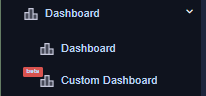
The Dashboard option is made up of a drop down menu consisting of two options.

They are both pretty similar. "Dashboard" is a premade Dashboard providing a window into our NEMT operation, it displays various statistics laid out in an easy to digest format.

"Custom Dashboard" is very similar, although upon opening it the dashboard will appear blank. To apply widgets to your dashboard click on the settings wheel in the top right, shown below:

[![image.png](https://lakeshorekb.xyz/uploads/images/gallery/2026-07/scaled-1680-/zByimage.png)](https://lakeshorekb.xyz/uploads/images/gallery/2026-07/zByimage.png)

This will open a menu of widgets that you can add to your custom Dashboard. Some will require you to select a date range before adding them and others will use the date range you select in the top left of the dashboard.

[![image.png](https://lakeshorekb.xyz/uploads/images/gallery/2026-07/scaled-1680-/QItimage.png)](https://lakeshorekb.xyz/uploads/images/gallery/2026-07/QItimage.png)
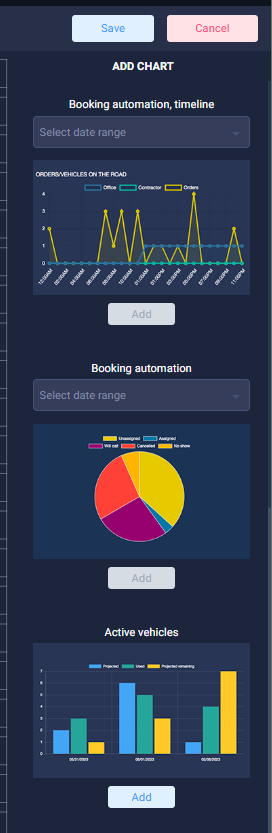
Remember you must also set a date range on the top left, if you dont then your widgets that require it will not pull any data as they need selected dates to pull data from.

[![image.png](https://lakeshorekb.xyz/uploads/images/gallery/2026-07/scaled-1680-/20Dimage.png)](https://lakeshorekb.xyz/uploads/images/gallery/2026-07/20Dimage.png)

<p class="callout warning">Keep in mind that this feature is still in beta according to "RG" so it may not always function perfectly. </p>

And that is really everything there is to know about this section, it is more or less just an information panel.

### **Dispatching**

This is an extremely complex Dashboard that will have its own help guide.

A large portion of your time in RG will be spent in the Dispatching interface shown below:

[![image.png](https://lakeshorekb.xyz/uploads/images/gallery/2026-07/scaled-1680-/bdlimage.png)](https://lakeshorekb.xyz/uploads/images/gallery/2026-07/bdlimage.png)
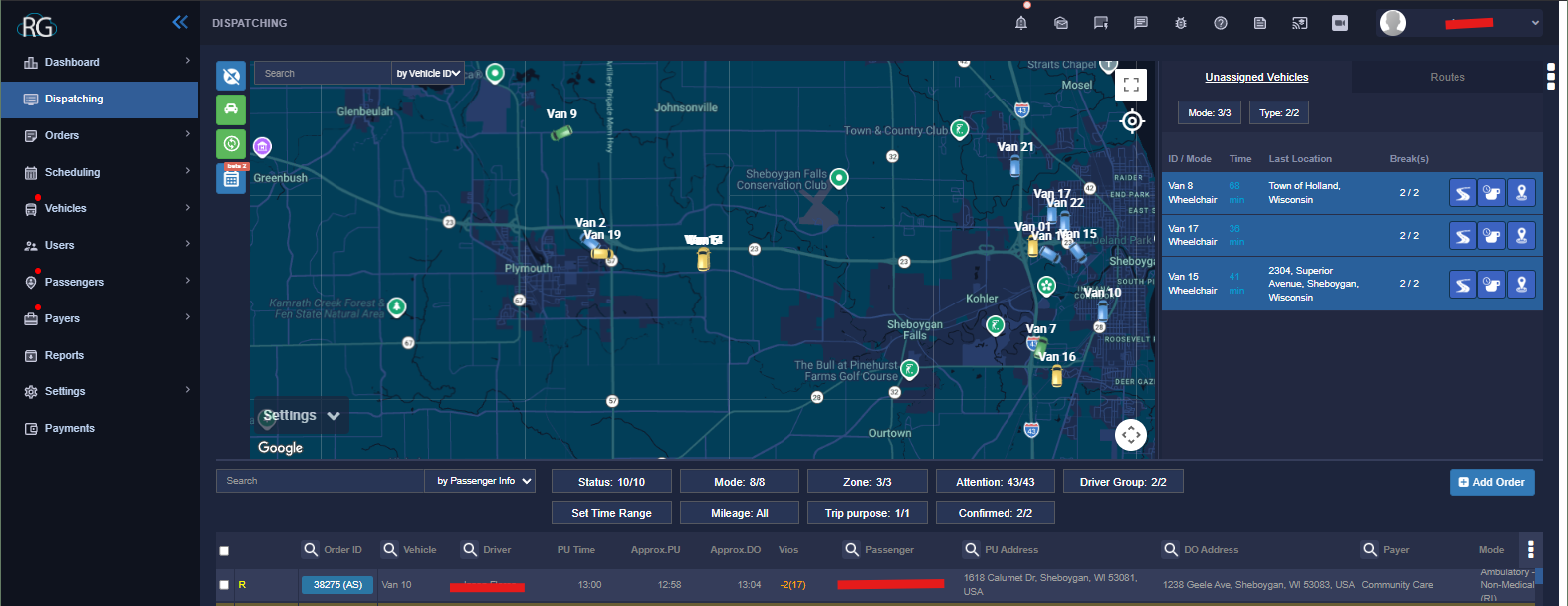
Unlike your the last section this interface is far too complex to cover in a few sentences. The Dispatching interface contains a log of all the trips for any given day, shift data for the drivers and vans as well as a plethora of tools to allow us to manipulate the schedule as we work through the current day.

Notably you can also add an order from the Dispatching interface.

### **Orders**

Next up is the Orders drop down, shown below:

[![image.png](https://lakeshorekb.xyz/uploads/images/gallery/2026-07/scaled-1680-/BT7image.png)](https://lakeshorekb.xyz/uploads/images/gallery/2026-07/BT7image.png)
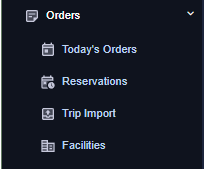
Here we have the option to look at a number of different interfaces.

##### **Todays Orders** 

This interface displays a logbook specifically for just the current days orders.

##### **Reservations** 

Similar to todays orders the reservations interface displays a searchable logbook of trips, only here it includes every trip we have in the system from the day the server was spun up to the current working day.

##### **Trip Import** 

This interface provides a way to import tips in to the system via a spreadsheet, however, we do not currently utilize this in anyway at lakeshore. Not to say we never will use it but at least for now there is no need to worry about it.

##### **Facilities** 

This interface provides an index of facilities that we have saved in the system, you can also add facilities to this index here. It allows us to quickly add in a location when scheduling a trip as you can just type the facility name instead of needing to know the address.

### **Scheduling**

This drop down menu houses another really important interface, "Pre-assign Modes".

[![image.png](https://lakeshorekb.xyz/uploads/images/gallery/2026-07/scaled-1680-/YVQimage.png)](https://lakeshorekb.xyz/uploads/images/gallery/2026-07/YVQimage.png)
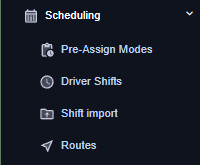
A Pre-Assign is basically a schedule for any given day, and we create them individually. Trips are entered in to the system as we get them and when a pre assign is created it pulls in any trips for that date.

Essentially each upcoming day has its own Pre Assign and that is finally displayed in dispatching once it becomes the current day.

Just like the Dispatching Interface the Pre Assign interface is pretty complicated, it is also somewhat similar although it does have key differences, for instance, re organizing routes is much easier in Pre-Assign mode. Here is a glance of what the Pre Assign interface looks like:

[![image.png](https://lakeshorekb.xyz/uploads/images/gallery/2026-07/scaled-1680-/YsQimage.png)](https://lakeshorekb.xyz/uploads/images/gallery/2026-07/YsQimage.png)
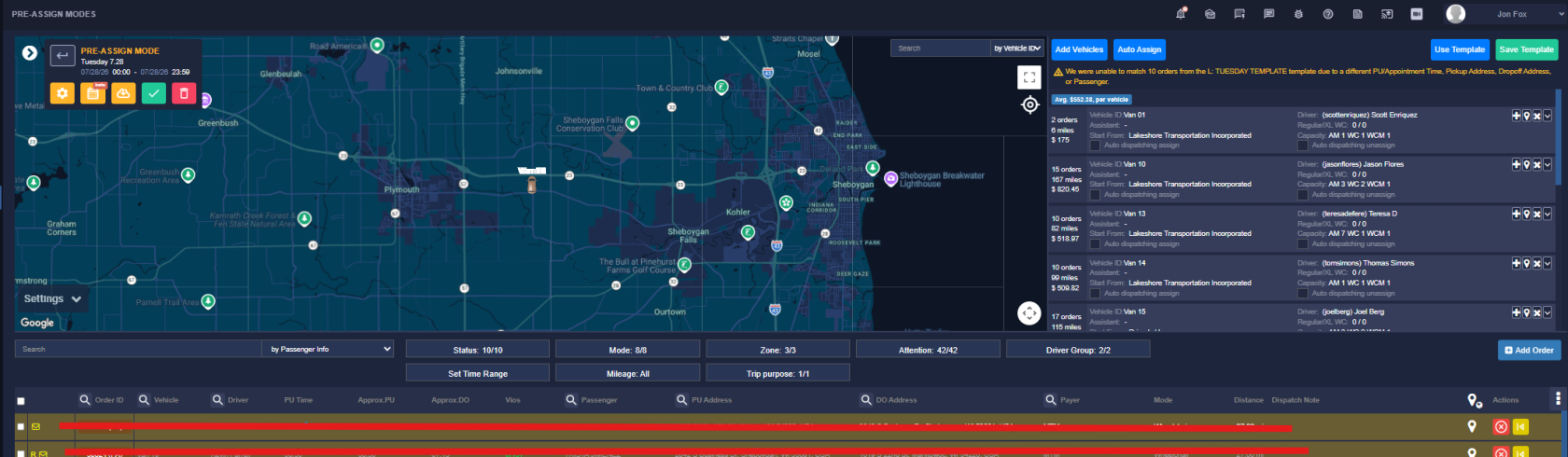
Also like dispatching we wont be deep diving into this here.

The **Scheduling** dropdown also houses a few other options but at lakeshore we only use one of them.

##### **Driver Shifts** 

The only other interface we work with in the scheduling drop down at lakeshore. This interface can be used to display the driver schedules for any given day, you will often have to come in here to fix things like incorrect vehicles, shift swaps, and clearing duplicates.

Lets take a quick glance at what the Driver Shifts Interface looks like:

[![image.png](https://lakeshorekb.xyz/uploads/images/gallery/2026-07/scaled-1680-/13nimage.png)](https://lakeshorekb.xyz/uploads/images/gallery/2026-07/13nimage.png)
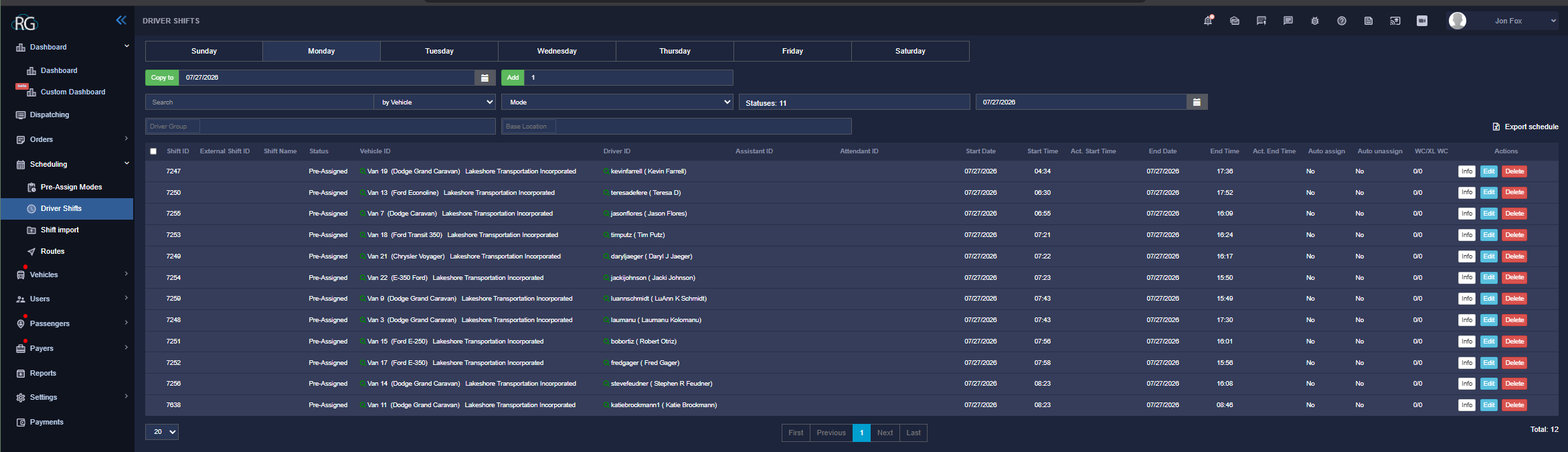
While we do not spend a lot of time messing around with this interface some of the more confusing tasks you will encounter do require understanding how this works and unfortunately understanding exactly how driver shifts work is part of the steep learning curve i was talking about earlier. It is not as straightforward as one would think.

##### **Shift Import** 

This interface is for importing driver shifts via a spreadsheet, we dont currently make use of this at Lakeshore.

##### **Routes** 

Scheduling routes is another way to assign trips ... it kind of works in the way you would think a bus route does. This is useful for companies that have the exact same trips and the exact same schedule every single day. Currently we do not utilize this at Lakeshore.

### **Vehicles**

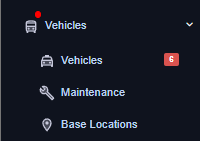
The Vehicles drop down is one of the more easy to understand menus in the RG system:

[![image.png](https://lakeshorekb.xyz/uploads/images/gallery/2026-07/scaled-1680-/4MVimage.png)](https://lakeshorekb.xyz/uploads/images/gallery/2026-07/4MVimage.png)
##### **Vehicles** 

The Vehicles interface lists all the vehicles we have available along with their capacity and other amenities, you can also toggle a plethora of settings and view things like vehicle history in this interface.

[![image.png](https://lakeshorekb.xyz/uploads/images/gallery/2026-07/scaled-1680-/RgCimage.png)](https://lakeshorekb.xyz/uploads/images/gallery/2026-07/RgCimage.png)
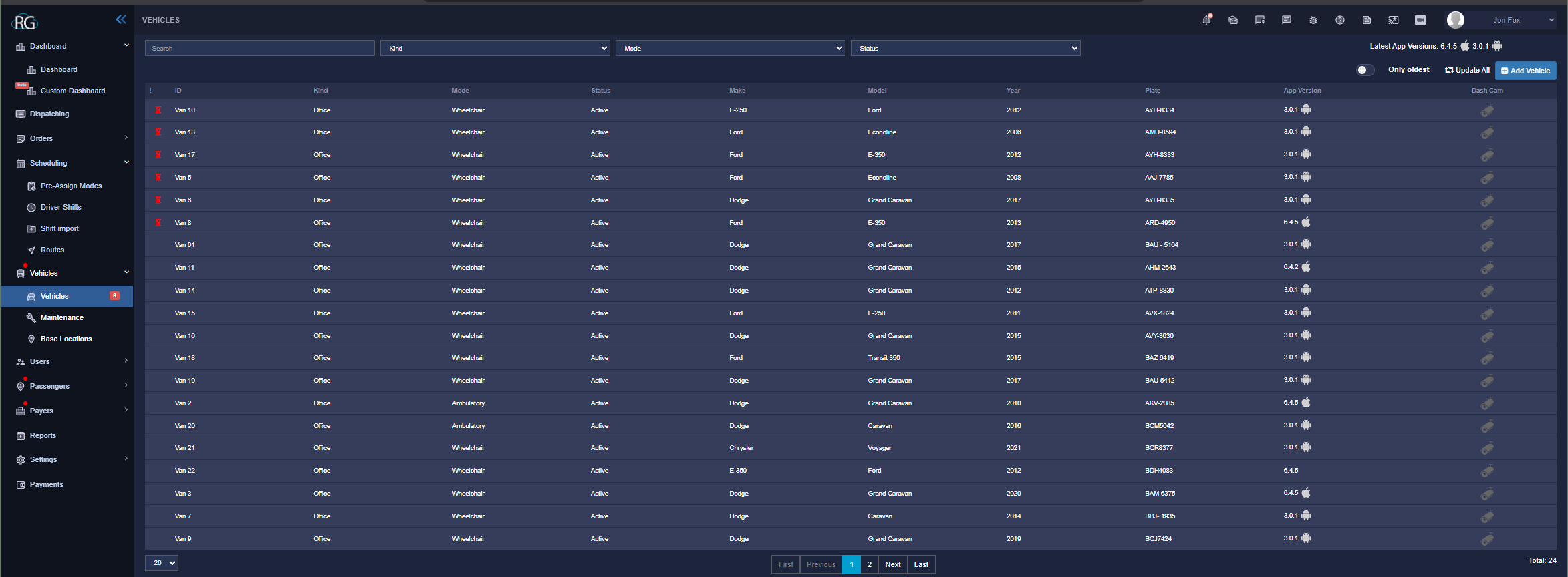
One of the really important things to keep in mind is that RG is billed based on vehicles, even adding a vehicle temporarily will result in an extra charge, so never add another vehicle on here unless you have been instructed to. Not even briefly as a learning tool.

##### **Maintenance** 

This is a really useful interface that allows us to keep track of vehicle maintenance, it also helps to keep us from scheduling trips on vehicles that are currently in maintenance. However, we do not currently use this interface at Lakeshore although that may change in the future being as it is one of the few unused interfaces that we actually DO have use for.

##### **Base Locations** 

While we do use this interface it is pretty simple. This allows you to list your base locations (duh) and the related information. Since we only have one its not something we really ever work with but we do technically use it as we do have the one listed. Maybe as our company grows this will become of more use to us.

### **Users**

The users interface is all about us, the internal user.

[![image.png](https://lakeshorekb.xyz/uploads/images/gallery/2026-07/scaled-1680-/yCPimage.png)](https://lakeshorekb.xyz/uploads/images/gallery/2026-07/yCPimage.png)
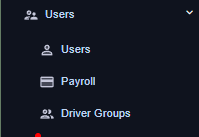
##### **Users**

On this interface we can find a log of all the current users and we can also add users as needed.

[![image.png](https://lakeshorekb.xyz/uploads/images/gallery/2026-07/scaled-1680-/LHyimage.png)](https://lakeshorekb.xyz/uploads/images/gallery/2026-07/LHyimage.png)
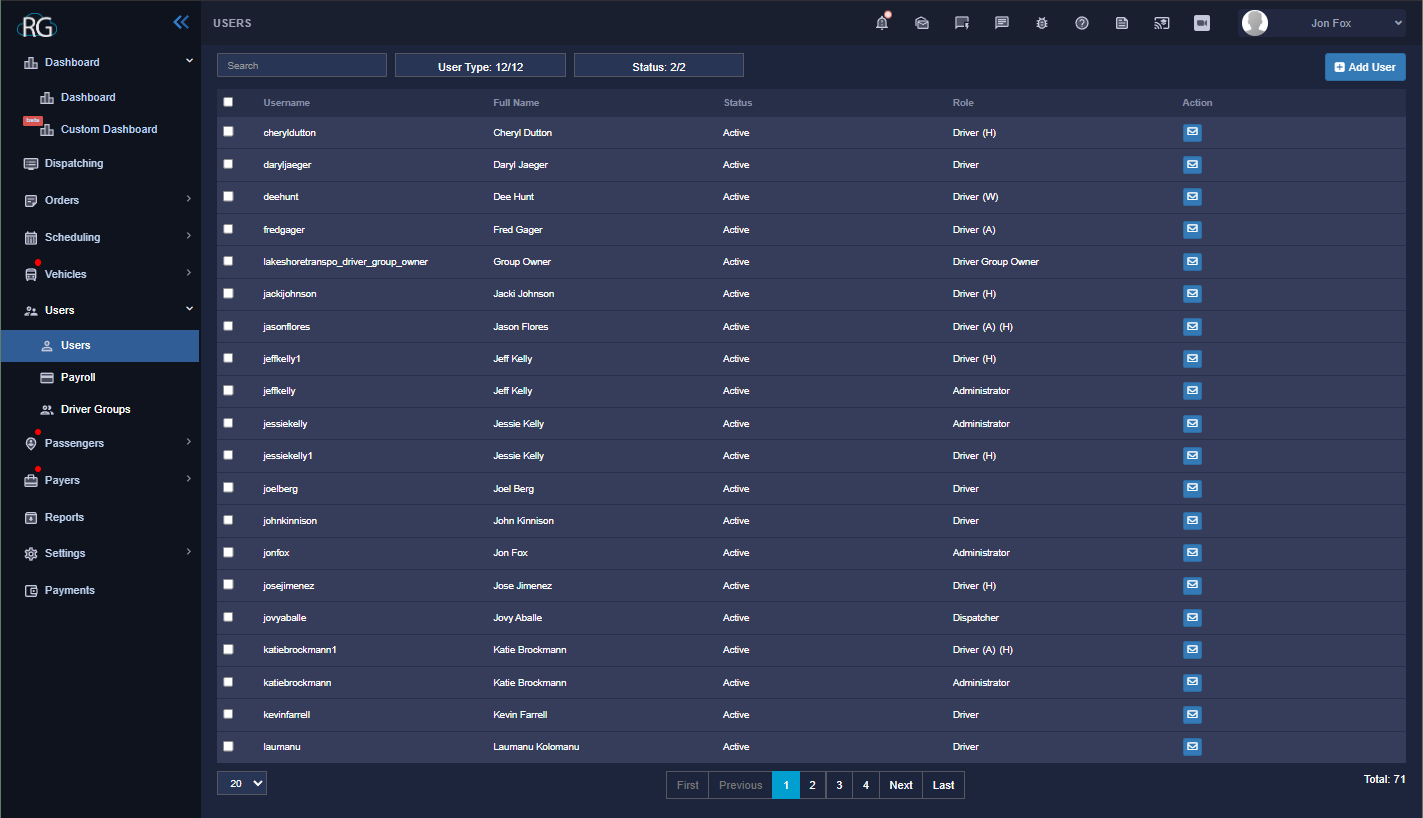
There really is not much more to it than that, you will also find various personal information as well as access settings for each individual user but your own level of access will also have an effect on what is available to you here.

##### **Payroll**

Another interface that we do not use at lakeshore, our payroll is handled through Quick Books.

##### **Driver Groups**

Driver Groups are strangely complex and while we do not really use them at lakeshore I suppose it is somewhat important to understand what they are exactly.

Simply put, it is what the name says.

In more complex terms the goal behind them is to group Drivers together for various reasons. You may have a certain group of drivers that must be used for a specific payer. Or maybe you would like to group your drivers geologically to a certain side of town. Whatever the reason Driver Groups allow you to manage your team in this way and provide a wealth of settings, logs and options to go along with it.

Again we do not currently use Driver Groups at lakeshore, but that is not to say we never will.

### **Passengers**

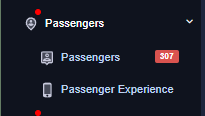
This drop down is focused on cataloging our riders and their experiences.

[![image.png](https://lakeshorekb.xyz/uploads/images/gallery/2026-07/scaled-1680-/16Zimage.png)](https://lakeshorekb.xyz/uploads/images/gallery/2026-07/16Zimage.png)
##### **Passengers**

The interface for Passengers is not much different than the one for Users aside from the fact that it manages our customers and not our employ.

[![image.png](https://lakeshorekb.xyz/uploads/images/gallery/2026-07/scaled-1680-/Na5image.png)](https://lakeshorekb.xyz/uploads/images/gallery/2026-07/Na5image.png)
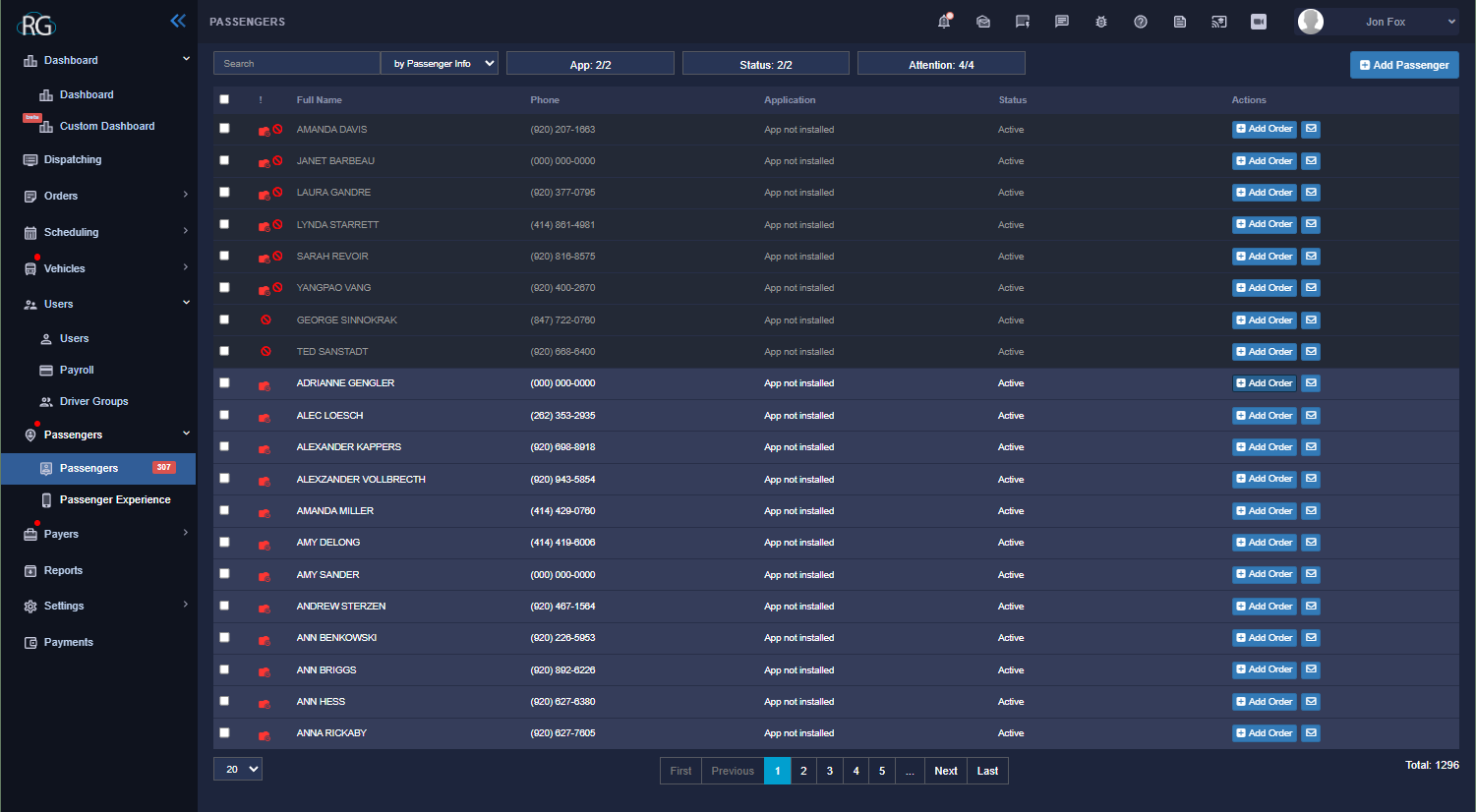
You can also add a passenger here if need be although that is rarely required as they can be automatically added in most circumstances by simply creating a trip for them and entering their information. Alternatively you can also add an order to a user directly here.

Selecting any given users profile opens up a large option of settings and logs that allows us to manage our passengers as we see fit, everything from changing a passengers address to blacklisting them from a driver can be done here.

##### **Passenger Experience** 

This interface is to be used with an external app that allows passengers to review their experience, we do not currently utilize this at Lakeshore.

### **Payers**

The Payers interface is similar again to the Users and Passengers interface except here we are referencing payer profiles.

[![image.png](https://lakeshorekb.xyz/uploads/images/gallery/2026-07/scaled-1680-/GNJimage.png)](https://lakeshorekb.xyz/uploads/images/gallery/2026-07/GNJimage.png)
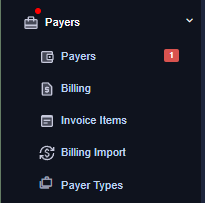
##### **Payers**

Taking a look at the Payers interface is again reminiscent of Users, and Passengers. It is simply a log that houses all the Payers Lakeshore Transportation works with:

[![image.png](https://lakeshorekb.xyz/uploads/images/gallery/2026-07/scaled-1680-/VNWimage.png)](https://lakeshorekb.xyz/uploads/images/gallery/2026-07/VNWimage.png)
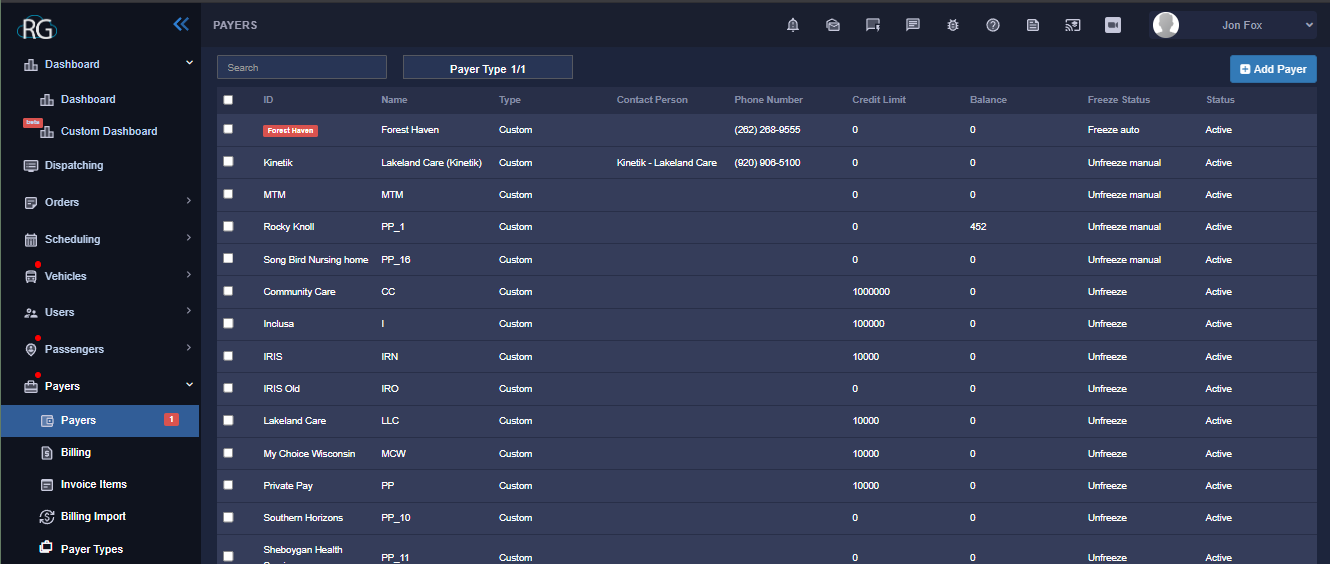
As with other similar interfaces (previously mentioned) selecting any given option from the list/log will open a profile for that payer with plenty of options and settings from A-Z. While it may seem simple at first there is a little more going on here than what is obviously apparent.

Payers can also be added here in a similar way to adding a user or passenger and creating a profile for them allows for a plethora of options and settings to use against each new addition. You can access these by simply choosing a payer form the list.

##### **Billing**

While we do currently utilize ***SOME*** of the options available through RG for billing we handle a large portion of it externally through QuickBooks along with our payroll.

##### **Invoice Items** 

This interface provides us with a log for managing and tracking "Invoice Items", this is one of the billing features that we do use. Some examples of invoice items are things like "Wait Time" and "After Hours Surcharge". Invoice items are added in to the log here and the interface provides settings and tools to help manage them.

When being used they are added on a per trip basis when the trip is being created.

##### **Billing Import**  


A tool for importing bills in to RG, it is not something we utilize here at lakeshore.

##### **Payer Types**

A way to group payers together using similarities, again, not something we use here at Lakeshore.

### **Reports**

This option does not have a drop down menu, but that does not make it any less complex.

[![image.png](https://lakeshorekb.xyz/uploads/images/gallery/2026-07/scaled-1680-/PLhimage.png)](https://lakeshorekb.xyz/uploads/images/gallery/2026-07/PLhimage.png)

The reports interface is used for exactly what you would expect, generating reports. We give RG a WHOLE lot of information and it stores all that information in the apps databases on our (private) server. Because of this RG is capable of querying all that historical data and using it to generate reports. Need to know how many miles a specific driver drove this past week in comparison to their average? take a look at how many times we have been late to pick up a certain client? Compare what drivers do the most work? Revenue information? None of that is a problem, its all there and accessible and then some.

Obviously we will not take a deep dive into setting up reports here but stay tuned for a full walkthrough on how to generate reports using RGs Reports Interface.

### **Settings**

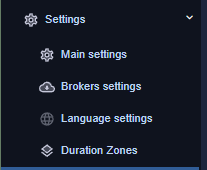
Another option name that is more or less self explanatory, the settings drop down is grouped in to four options.

[![image.png](https://lakeshorekb.xyz/uploads/images/gallery/2026-07/scaled-1680-/asWimage.png)](https://lakeshorekb.xyz/uploads/images/gallery/2026-07/asWimage.png)
##### **Main Settings**

An exhaustive list of options, toggles and automations the main settings menu covers all the settings needed to operate the website, once opened they are grouped in to a list that is far too long to even screenshot but there is a lot covered from the most basic things like "General" to more complex things like "Driver Shifts" you will find everything you could think of to tweak/manage the website here.

##### **Broker Settings**

Similar to the main settings option but specifically related to Brokers. Inside the interface each broker has its own menu, this one we do not access nearly as much if at all but when needed you will find our brokers settings and options here. As of right now I believe this would only apply for MTM although that does not mean we wont have more broker integrations in the future.

### **Payments**

Last but not least we have the Payments interface.

[![image.png](https://lakeshorekb.xyz/uploads/images/gallery/2026-07/scaled-1680-/GDaimage.png)](https://lakeshorekb.xyz/uploads/images/gallery/2026-07/GDaimage.png)

As important as this is, RG would not work if we stopped making payments, it is not something employees need to worry about. This is the interface lakeshore uses to pay for the RouteGenie SaaS on a monthly basis.

# **Top Right Button Cluster**

As exhaustive as the navigation bar is, believe it or not, it isn't a complete list of options we have as users from the home page. Up on the top right of the website you will notice a cluster of buttons along with a drop down that displays your name/username.

[![image.png](https://lakeshorekb.xyz/uploads/images/gallery/2026-07/scaled-1680-/HgWimage.png)](https://lakeshorekb.xyz/uploads/images/gallery/2026-07/HgWimage.png)
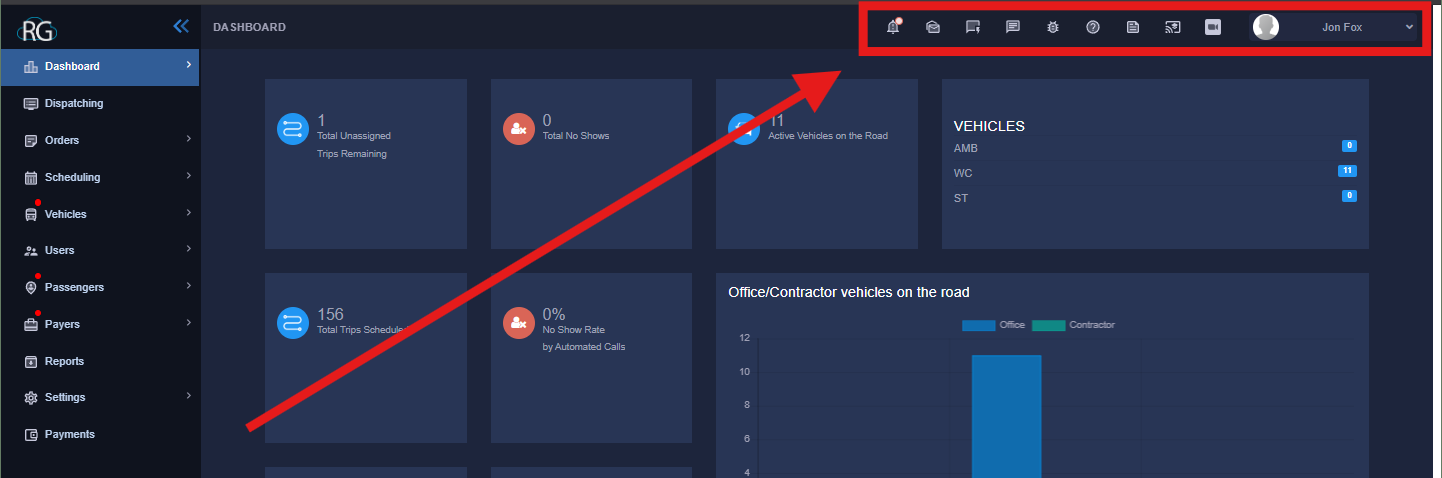
This button cluster houses a bunch of quick access links, some user settings and even our notification panel.

Lets take a closer look:

[![image.png](https://lakeshorekb.xyz/uploads/images/gallery/2026-07/scaled-1680-/GiIimage.png)](https://lakeshorekb.xyz/uploads/images/gallery/2026-07/GiIimage.png)

While we do have a lot of options here this wont take nearly as long to go over as most of them are just simple QuickLinks.

Lets work from left to right.

## **Notification bell**

[![image.png](https://lakeshorekb.xyz/uploads/images/gallery/2026-07/scaled-1680-/MD6image.png)](https://lakeshorekb.xyz/uploads/images/gallery/2026-07/MD6image.png)

Here is where all notifications will appear within RG. Simply clicking it will open up the notification tray. Everything from MTM trips and changes to standing order extensions to document downloads will appear in this tray.

## **Message Cluster**

[![image.png](https://lakeshorekb.xyz/uploads/images/gallery/2026-07/scaled-1680-/iwIimage.png)](https://lakeshorekb.xyz/uploads/images/gallery/2026-07/iwIimage.png)

While we could spend a decent amount of time getting in to these we will not because we do not use them at lakeshore. These three Icons handle the internal messaging system that is built in to RG but we do not use it. We communicate via QUO and Slack.

## **Quick Link Cluster**

[![image.png](https://lakeshorekb.xyz/uploads/images/gallery/2026-07/scaled-1680-/YPUimage.png)](https://lakeshorekb.xyz/uploads/images/gallery/2026-07/YPUimage.png)

The next three are Quick Links which are all useful in their own right.

From left to right:

##### **Bug Report**  


If you experience a bug or have an issue with RG you can report it here quickly. However, if it is something that is effecting operations currently you need to notify the rest of the team (us) and probably call RouteGenie help desk (the number is saved in Quo). This should be used for small issues that are not stopping anyone from doing their job.

##### **RouteGenie Knowledge Base**

While we want you to reference our own knowledgebase first as it is geared toward operations at lakeshore RG does have its own knowledgebase that you can also check out.

##### **NEMT News**

This is just a quick link to the RG blog ... some of the stuff in there is pretty interesting and they do keep it up to date but they also tend to email these articles to us pretty regularly as well.

## **Free Live Training**

[![image.png](https://lakeshorekb.xyz/uploads/images/gallery/2026-07/scaled-1680-/2Xyimage.png)](https://lakeshorekb.xyz/uploads/images/gallery/2026-07/2Xyimage.png)

Realistically you should consult with our management team before trying to set up a training session with RG but this is another quick link that will put you in direct contact with the RG training team. This could be useful if your having a really hard time getting over the learning curve.

## **Screen Share**

[![image.png](https://lakeshorekb.xyz/uploads/images/gallery/2026-07/scaled-1680-/8I1image.png)](https://lakeshorekb.xyz/uploads/images/gallery/2026-07/8I1image.png)

This screen share button is used to share your instance quickly and painlessly when you are on the phone with RouteGenie support.

## **Personal Settings**

[![image.png](https://lakeshorekb.xyz/uploads/images/gallery/2026-07/scaled-1680-/c51image.png)](https://lakeshorekb.xyz/uploads/images/gallery/2026-07/c51image.png)

Lastly we have our personal settings drop down.

[![image.png](https://lakeshorekb.xyz/uploads/images/gallery/2026-07/scaled-1680-/IFFimage.png)](https://lakeshorekb.xyz/uploads/images/gallery/2026-07/IFFimage.png)
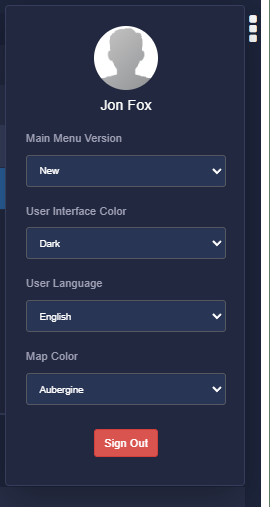
This drop down provides us with a few basic options that allow us to change things like the layout of the interface, Map Color, and Language. Alternatively if you need to manually sign out of your instance this is where you would do it.

# Looking At Different Objects In RouteGenie

# Viewing A Trip

# **Viewing A Trip In RouteGenie**

There are many different instances in which you would view a trip in RouteGenie, From the Dispatch and Pre-Assign interfaces to reservations it is one of the most common objects you are going to encounter.

### **Looking at a trip in the log**

Lets take a look at what trips look like as you encounter them throughout the web app, no matter what interface your looking at trips appear in a similar fashion. A horizontal log/list.

[![image.png](https://lakeshorekb.xyz/uploads/images/gallery/2026-07/scaled-1680-/6Jnimage.png)](https://lakeshorekb.xyz/uploads/images/gallery/2026-07/6Jnimage.png)

While the way the log is displayed my vary slightly depending on the interface for the most part it looks like what is shown above (the black boxes are just blocking PII) and regardless of the slight variances the way information is displayed is uniform across all interfaces.

### **Trip Status and Trip ID**

#### **Trip ID**

[![image.png](https://lakeshorekb.xyz/uploads/images/gallery/2026-07/scaled-1680-/5Jkimage.png)](https://lakeshorekb.xyz/uploads/images/gallery/2026-07/5Jkimage.png)
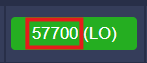
One of the first things you will notice on any given trip line is a colored box with a number on it. That number is what is known as the Trip ID. Each trip will have a unique one and depending on the broker some of them may differ in the way they are generated.

#### **Trip Status**

[![image.png](https://lakeshorekb.xyz/uploads/images/gallery/2026-07/scaled-1680-/4gMimage.png)](https://lakeshorekb.xyz/uploads/images/gallery/2026-07/4gMimage.png)
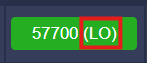
Next to the Trip ID we see what is called the Trip Status. It is displayed in an abbreviation, you will also notice that the background color changes depending on the abbreviation shown. While there are a lot of options dont worry, its nothing too complicated.

Next we will take a look at all the different options for Trip Status.

##### **Unassigned (UA)**<span class="heading-anchor-wrapper" role="presentation"><button aria-hidden="true" class="css-x4slh0" data-testid="anchor-button" type="button"><span aria-label="Copy" class="_1e0c1o8l _vchhusvi _1o9zidpf _vwz4kb7n _y4ti1igz _bozg1mb9 _12va1onz _jcxd1r8n" role="img"><svg class="_1reo15vq _18m915vq _syaz1r31 _lcxvglyw _s7n4yfq0 _vc881r31 _1bsbpxbi _4t3ipxbi" fill="none" role="presentation" viewbox="0 0 16 16"><path clip-rule="evenodd" d="M8.22 2.22a3.932 3.932 0 1 1 5.56 5.56l-2.25 2.25-1.06-1.06 2.25-2.25a2.432 2.432 0 0 0-3.44-3.44L7.03 5.53 5.97 4.47zm3.06 3.56-5.5 5.5-1.06-1.06 5.5-5.5zM2.22 8.22l2.25-2.25 1.06 1.06-2.25 2.25a2.432 2.432 0 0 0 3.44 3.44l2.25-2.25 1.06 1.06-2.25 2.25a3.932 3.932 0 1 1-5.56-5.56" fill="currentcolor" fill-rule="evenodd"></path></svg></span></button></span>

[![image.png](https://lakeshorekb.xyz/uploads/images/gallery/2026-07/scaled-1680-/RROimage.png)](https://lakeshorekb.xyz/uploads/images/gallery/2026-07/RROimage.png)

<div class="css-12lwizq" data-column-width="50" data-layout-column="true" id="bkmrk--4"><div class="css-pw7jst"><div class="rich-media-item mediaSingleView-content-wrap image-wrap-left rich-media-wrapped css-1je571x" data-layout="wrap-left" data-media-vc-wrapper="true" data-node-type="mediaSingle" data-renderer-start-pos="235" data-vc="media-single" data-width="140" data-width-type="pixel"><div class="css-1g3awso"><div data-alt="image-20240829-161402.png" data-collection="contentId-1092124739" data-context-id="1092124739" data-file-mime-type="image/png" data-file-name="image-20240829-161402.png" data-file-size="2155" data-height="76" data-id="0fc446bf-5474-45e1-8fb7-a64e40ad5619" data-node-type="media" data-renderer-start-pos="236" data-type="file" data-width="210"><div class="_2rko18qm _vchhusvi _kqswh2mm _ect4ttxp _p12f1osq _c71l1osq _1bsb1qmm _4t3ine4n _1hlmd0i9 _1rquusvi _eg541i5c _mts3kb7n _1ntskb7n _yfmhtlke _5sb1v00u new-file-experience-wrapper" data-media-vc-wrapper="true" data-testid="media-card-view" id="bkmrk--5" role="none"><div class="_1reo15vq _18m915vq _2rko18qm _1e0c1txw _kqswh2mm _p12f1osq _1bsb1osq _4t3i1osq _c71l1osq media-file-card-view" data-cursor="pointer" data-test-media-name="image-20240829-161402.png" data-test-progress="1" data-test-source="ssr-data" data-test-status="complete" data-testid="media-file-card-view">  
</div></div></div></div></div></div></div>This is an unassigned trip, it is the initial status a trip will generally take once entered in to the system. It means that the trip has been entered/scheduled in to our RG instance but there is not currently a driver assigned to it.

##### **Assigning (AG)** <span class="heading-anchor-wrapper" role="presentation"><button aria-hidden="true" class="css-x4slh0" data-testid="anchor-button" type="button"><span aria-label="Copy" class="_1e0c1o8l _vchhusvi _1o9zidpf _vwz4kb7n _y4ti1igz _bozg1mb9 _12va1onz _jcxd1r8n" role="img"><svg class="_1reo15vq _18m915vq _syaz1r31 _lcxvglyw _s7n4yfq0 _vc881r31 _1bsbpxbi _4t3ipxbi" fill="none" role="presentation" viewbox="0 0 16 16"><path clip-rule="evenodd" d="M8.22 2.22a3.932 3.932 0 1 1 5.56 5.56l-2.25 2.25-1.06-1.06 2.25-2.25a2.432 2.432 0 0 0-3.44-3.44L7.03 5.53 5.97 4.47zm3.06 3.56-5.5 5.5-1.06-1.06 5.5-5.5zM2.22 8.22l2.25-2.25 1.06 1.06-2.25 2.25a2.432 2.432 0 0 0 3.44 3.44l2.25-2.25 1.06 1.06-2.25 2.25a3.932 3.932 0 1 1-5.56-5.56" fill="currentcolor" fill-rule="evenodd"></path></svg></span></button></span>

<div class="css-12lwizq" data-column-width="50" data-layout-column="true" id="bkmrk--6"><div class="css-pw7jst"><div class="rich-media-item mediaSingleView-content-wrap image-wrap-left rich-media-wrapped css-1je571x" data-layout="wrap-left" data-media-vc-wrapper="true" data-node-type="mediaSingle" data-renderer-start-pos="329" data-vc="media-single" data-width="140" data-width-type="pixel"><div class="css-1lbp0rw">  
</div></div></div></div>[![image.png](https://lakeshorekb.xyz/uploads/images/gallery/2026-07/scaled-1680-/C9vimage.png)](https://lakeshorekb.xyz/uploads/images/gallery/2026-07/C9vimage.png)

<div class="css-12lwizq" data-column-width="50" data-layout-column="true" id="bkmrk--8"><div class="css-pw7jst"><div class="rich-media-item mediaSingleView-content-wrap image-wrap-left rich-media-wrapped css-1je571x" data-layout="wrap-left" data-media-vc-wrapper="true" data-node-type="mediaSingle" data-renderer-start-pos="329" data-vc="media-single" data-width="140" data-width-type="pixel"><div class="css-1lbp0rw"><div data-alt="image-20240829-162011.png" data-collection="contentId-1092124739" data-context-id="1092124739" data-file-mime-type="image/png" data-file-name="image-20240829-162011.png" data-file-size="12866" data-height="70" data-id="b096293e-5277-4194-9c34-349d187d8e43" data-node-type="media" data-renderer-start-pos="330" data-type="file" data-width="184"><div class="_2rko18qm _vchhusvi _kqswh2mm _ect4ttxp _p12f1osq _c71l1osq _1bsb1qmm _4t3ine4n _1hlmd0i9 _1rquusvi _eg541i5c _mts3kb7n _1ntskb7n _yfmhtlke _5sb1v00u new-file-experience-wrapper" data-media-vc-wrapper="true" data-testid="media-card-view" id="bkmrk--9" role="none"><div class="_1reo15vq _18m915vq _2rko18qm _1e0c1txw _kqswh2mm _p12f1osq _1bsb1osq _4t3i1osq _c71l1osq media-file-card-view" data-cursor="pointer" data-test-media-name="image-20240829-162011.png" data-test-progress="1" data-test-source="ssr-data" data-test-status="complete" data-testid="media-file-card-view">  
</div></div></div></div></div></div></div>When a trip has been assigned to a driver and is in the process of being assigned you my briefly see this status, if the trip is being offered to the driver and they have not accepted it yet you will come across the next one.

##### **Offering (OF)** <button aria-hidden="true" class="css-x4slh0" data-testid="anchor-button" type="button"></button>

**Missing Screen Shot**

#### <span class="heading-anchor-wrapper" role="presentation"><button aria-hidden="true" class="css-x4slh0" data-testid="anchor-button" type="button"><span aria-label="Copy" class="_1e0c1o8l _vchhusvi _1o9zidpf _vwz4kb7n _y4ti1igz _bozg1mb9 _12va1onz _jcxd1r8n" role="img"><svg class="_1reo15vq _18m915vq _syaz1r31 _lcxvglyw _s7n4yfq0 _vc881r31 _1bsbpxbi _4t3ipxbi" fill="none" role="presentation" viewbox="0 0 16 16"></svg></span></button></span>

This status will briefly show while a trip is in limbo and the system is waiting for the driver to accept the offer. This status can be skipped many ways but we can cover that in different guides.

##### **Pre-Assigned (PA)** <span class="heading-anchor-wrapper" role="presentation"><button aria-hidden="true" class="css-x4slh0" data-testid="anchor-button" type="button"><span aria-label="Copy" class="_1e0c1o8l _vchhusvi _1o9zidpf _vwz4kb7n _y4ti1igz _bozg1mb9 _12va1onz _jcxd1r8n" role="img"><svg class="_1reo15vq _18m915vq _syaz1r31 _lcxvglyw _s7n4yfq0 _vc881r31 _1bsbpxbi _4t3ipxbi" fill="none" role="presentation" viewbox="0 0 16 16"><path clip-rule="evenodd" d="M8.22 2.22a3.932 3.932 0 1 1 5.56 5.56l-2.25 2.25-1.06-1.06 2.25-2.25a2.432 2.432 0 0 0-3.44-3.44L7.03 5.53 5.97 4.47zm3.06 3.56-5.5 5.5-1.06-1.06 5.5-5.5zM2.22 8.22l2.25-2.25 1.06 1.06-2.25 2.25a2.432 2.432 0 0 0 3.44 3.44l2.25-2.25 1.06 1.06-2.25 2.25a3.932 3.932 0 1 1-5.56-5.56" fill="currentcolor" fill-rule="evenodd"></path></svg></span></button></span>

<div class="css-12lwizq" data-column-width="50" data-layout-column="true" id="bkmrk--11"><div class="css-pw7jst"><div class="rich-media-item mediaSingleView-content-wrap image-wrap-left rich-media-wrapped css-1je571x" data-layout="wrap-left" data-media-vc-wrapper="true" data-node-type="mediaSingle" data-renderer-start-pos="557" data-vc="media-single" data-width="140" data-width-type="pixel"><div class="css-x9mnvz">  
</div></div></div></div>[![image.png](https://lakeshorekb.xyz/uploads/images/gallery/2026-07/scaled-1680-/XHmimage.png)](https://lakeshorekb.xyz/uploads/images/gallery/2026-07/XHmimage.png)

<div class="css-12lwizq" data-column-width="50" data-layout-column="true" id="bkmrk--13"><div class="css-pw7jst"><div class="rich-media-item mediaSingleView-content-wrap image-wrap-left rich-media-wrapped css-1je571x" data-layout="wrap-left" data-media-vc-wrapper="true" data-node-type="mediaSingle" data-renderer-start-pos="557" data-vc="media-single" data-width="140" data-width-type="pixel"><div class="css-x9mnvz"><div data-alt="image-20240829-161922.png" data-collection="contentId-1092124739" data-context-id="1092124739" data-file-mime-type="image/png" data-file-name="image-20240829-161922.png" data-file-size="2712" data-height="68" data-id="71ddd2b1-176f-4d13-ac35-f291579dcf4f" data-node-type="media" data-renderer-start-pos="558" data-type="file" data-width="204"><div class="_2rko18qm _vchhusvi _kqswh2mm _ect4ttxp _p12f1osq _c71l1osq _1bsb1qmm _4t3ine4n _1hlmd0i9 _1rquusvi _eg541i5c _mts3kb7n _1ntskb7n _yfmhtlke _5sb1v00u new-file-experience-wrapper" data-media-vc-wrapper="true" data-testid="media-card-view" id="bkmrk--14" role="none"><div class="_1reo15vq _18m915vq _2rko18qm _1e0c1txw _kqswh2mm _p12f1osq _1bsb1osq _4t3i1osq _c71l1osq media-file-card-view" data-cursor="pointer" data-test-media-name="image-20240829-161922.png" data-test-progress="1" data-test-source="ssr-data" data-test-status="complete" data-testid="media-file-card-view">  
</div></div></div></div></div></div></div>This is the status that is assigned to a trip when a trip has been assigned via the pre-assign mode. There are many differences between this and simply assigning a trip but we wont get into that here. This status will only show while a schedule is still in pre-assign mode. Once it becomes the current day and drivers log in to their shifts and start the trips will change to AS(Assigned).

##### **Assigned (AS)**<span class="heading-anchor-wrapper" role="presentation"><button aria-hidden="true" class="css-x4slh0" data-testid="anchor-button" type="button"><span aria-label="Copy" class="_1e0c1o8l _vchhusvi _1o9zidpf _vwz4kb7n _y4ti1igz _bozg1mb9 _12va1onz _jcxd1r8n" role="img"><svg class="_1reo15vq _18m915vq _syaz1r31 _lcxvglyw _s7n4yfq0 _vc881r31 _1bsbpxbi _4t3ipxbi" fill="none" role="presentation" viewbox="0 0 16 16"><path clip-rule="evenodd" d="M8.22 2.22a3.932 3.932 0 1 1 5.56 5.56l-2.25 2.25-1.06-1.06 2.25-2.25a2.432 2.432 0 0 0-3.44-3.44L7.03 5.53 5.97 4.47zm3.06 3.56-5.5 5.5-1.06-1.06 5.5-5.5zM2.22 8.22l2.25-2.25 1.06 1.06-2.25 2.25a2.432 2.432 0 0 0 3.44 3.44l2.25-2.25 1.06 1.06-2.25 2.25a3.932 3.932 0 1 1-5.56-5.56" fill="currentcolor" fill-rule="evenodd"></path></svg></span></button></span>

<div class="css-12lwizq" data-column-width="50" data-layout-column="true" id="bkmrk--16"><div class="css-pw7jst"><div class="rich-media-item mediaSingleView-content-wrap image-wrap-left rich-media-wrapped css-1je571x" data-layout="wrap-left" data-media-vc-wrapper="true" data-node-type="mediaSingle" data-renderer-start-pos="617" data-vc="media-single" data-width="140" data-width-type="pixel"><div class="css-1qa0jk2">  
</div></div></div></div>[![image.png](https://lakeshorekb.xyz/uploads/images/gallery/2026-07/scaled-1680-/qA3image.png)](https://lakeshorekb.xyz/uploads/images/gallery/2026-07/qA3image.png)

<div class="css-12lwizq" data-column-width="50" data-layout-column="true" id="bkmrk--18"><div class="css-pw7jst"><div class="rich-media-item mediaSingleView-content-wrap image-wrap-left rich-media-wrapped css-1je571x" data-layout="wrap-left" data-media-vc-wrapper="true" data-node-type="mediaSingle" data-renderer-start-pos="617" data-vc="media-single" data-width="140" data-width-type="pixel"><div class="css-1qa0jk2"><div data-alt="image-20240829-161442.png" data-collection="contentId-1092124739" data-context-id="1092124739" data-file-mime-type="image/png" data-file-name="image-20240829-161442.png" data-file-size="4310" data-height="72" data-id="bf5412b9-31f3-422e-8b89-07ff11b05619" data-node-type="media" data-renderer-start-pos="618" data-type="file" data-width="182"><div class="_2rko18qm _vchhusvi _kqswh2mm _ect4ttxp _p12f1osq _c71l1osq _1bsb1qmm _4t3ine4n _1hlmd0i9 _1rquusvi _eg541i5c _mts3kb7n _1ntskb7n _yfmhtlke _5sb1v00u new-file-experience-wrapper" data-media-vc-wrapper="true" data-testid="media-card-view" role="none"><div class="_1reo15vq _18m915vq _2rko18qm _1e0c1txw _kqswh2mm _p12f1osq _1bsb1osq _4t3i1osq _c71l1osq media-file-card-view" data-cursor="pointer" data-test-media-name="image-20240829-161442.png" data-test-progress="1" data-test-source="ssr-data" data-test-status="complete" data-testid="media-file-card-view">  
</div></div></div></div></div></div></div><div class="css-12lwizq" data-column-width="50" data-layout-column="true" id="bkmrk--19"><div class="css-pw7jst"><div class="rich-media-item mediaSingleView-content-wrap image-wrap-left rich-media-wrapped css-1je571x" data-layout="wrap-left" data-media-vc-wrapper="true" data-node-type="mediaSingle" data-renderer-start-pos="617" data-vc="media-single" data-width="140" data-width-type="pixel"><div class="css-1qa0jk2"><div data-alt="image-20240829-161442.png" data-collection="contentId-1092124739" data-context-id="1092124739" data-file-mime-type="image/png" data-file-name="image-20240829-161442.png" data-file-size="4310" data-height="72" data-id="bf5412b9-31f3-422e-8b89-07ff11b05619" data-node-type="media" data-renderer-start-pos="618" data-type="file" data-width="182"><div class="_2rko18qm _vchhusvi _kqswh2mm _ect4ttxp _p12f1osq _c71l1osq _1bsb1qmm _4t3ine4n _1hlmd0i9 _1rquusvi _eg541i5c _mts3kb7n _1ntskb7n _yfmhtlke _5sb1v00u new-file-experience-wrapper" data-media-vc-wrapper="true" data-testid="media-card-view" id="bkmrk--20" role="none"><div class="_1reo15vq _18m915vq _2rko18qm _1e0c1txw _kqswh2mm _p12f1osq _1bsb1osq _4t3i1osq _c71l1osq media-file-card-view" data-cursor="pointer" data-test-media-name="image-20240829-161442.png" data-test-progress="1" data-test-source="ssr-data" data-test-status="complete" data-testid="media-file-card-view">  
</div></div></div></div></div></div></div>Once an order has been assigned for good it will obtain this status, this means the order is assigned, on a current day, and everything is in good standing.

##### **In Route (IR)**<span class="heading-anchor-wrapper" role="presentation"><button aria-hidden="true" class="css-x4slh0" data-testid="anchor-button" type="button"><span aria-label="Copy" class="_1e0c1o8l _vchhusvi _1o9zidpf _vwz4kb7n _y4ti1igz _bozg1mb9 _12va1onz _jcxd1r8n" role="img"><svg class="_1reo15vq _18m915vq _syaz1r31 _lcxvglyw _s7n4yfq0 _vc881r31 _1bsbpxbi _4t3ipxbi" fill="none" role="presentation" viewbox="0 0 16 16"><path clip-rule="evenodd" d="M8.22 2.22a3.932 3.932 0 1 1 5.56 5.56l-2.25 2.25-1.06-1.06 2.25-2.25a2.432 2.432 0 0 0-3.44-3.44L7.03 5.53 5.97 4.47zm3.06 3.56-5.5 5.5-1.06-1.06 5.5-5.5zM2.22 8.22l2.25-2.25 1.06 1.06-2.25 2.25a2.432 2.432 0 0 0 3.44 3.44l2.25-2.25 1.06 1.06-2.25 2.25a3.932 3.932 0 1 1-5.56-5.56" fill="currentcolor" fill-rule="evenodd"></path></svg></span></button></span>

<div class="css-12lwizq" data-column-width="50" data-layout-column="true" id="bkmrk--21"><div class="css-pw7jst"><div class="rich-media-item mediaSingleView-content-wrap image-wrap-left rich-media-wrapped css-1je571x" data-layout="wrap-left" data-media-vc-wrapper="true" data-node-type="mediaSingle" data-renderer-start-pos="796" data-vc="media-single" data-width="140" data-width-type="pixel"><div class="css-14nnkoj">  
</div></div></div></div>[![image.png](https://lakeshorekb.xyz/uploads/images/gallery/2026-07/scaled-1680-/eRpimage.png)](https://lakeshorekb.xyz/uploads/images/gallery/2026-07/eRpimage.png)

<div class="css-12lwizq" data-column-width="50" data-layout-column="true" id="bkmrk--23"><div class="css-pw7jst"><div class="rich-media-item mediaSingleView-content-wrap image-wrap-left rich-media-wrapped css-1je571x" data-layout="wrap-left" data-media-vc-wrapper="true" data-node-type="mediaSingle" data-renderer-start-pos="796" data-vc="media-single" data-width="140" data-width-type="pixel"><div class="css-14nnkoj"><div data-alt="image-20240829-153952.png" data-collection="contentId-1092124739" data-context-id="1092124739" data-file-mime-type="image/png" data-file-name="image-20240829-153952.png?version=1&modificationDate=1724945994722&cacheVersion=1&api=v2&width=172&height=70" data-file-size="6476" data-height="70" data-id="8900d6d6-4d4a-4662-82ae-f62520d7830b" data-node-type="media" data-renderer-start-pos="797" data-type="file" data-width="172"><div class="_2rko18qm _vchhusvi _kqswh2mm _ect4ttxp _p12f1osq _c71l1osq _1bsb1qmm _4t3ine4n _1hlmd0i9 _1rquusvi _eg541i5c _mts3kb7n _1ntskb7n _yfmhtlke _5sb1v00u new-file-experience-wrapper" data-media-vc-wrapper="true" data-testid="media-card-view" id="bkmrk--24" role="none"><div class="_1reo15vq _18m915vq _2rko18qm _1e0c1txw _kqswh2mm _p12f1osq _1bsb1osq _4t3i1osq _c71l1osq media-file-card-view" data-cursor="pointer" data-test-media-name="image-20240829-153952.png?version=1&modificationDate=1724945994722&cacheVersion=1&api=v2&width=172&height=70" data-test-progress="1" data-test-source="ssr-data" data-test-status="complete" data-testid="media-file-card-view">  
</div></div></div></div></div></div></div>Once a driver is ready to start working on a trip they will hit a button on their app that tells the system they are "In Route" (IR). This means the driver is on the way.

##### **Loaded (LO)**  <span class="heading-anchor-wrapper" role="presentation"><button aria-hidden="true" class="css-x4slh0" data-testid="anchor-button" type="button"><span aria-label="Copy" class="_1e0c1o8l _vchhusvi _1o9zidpf _vwz4kb7n _y4ti1igz _bozg1mb9 _12va1onz _jcxd1r8n" role="img"><svg class="_1reo15vq _18m915vq _syaz1r31 _lcxvglyw _s7n4yfq0 _vc881r31 _1bsbpxbi _4t3ipxbi" fill="none" role="presentation" viewbox="0 0 16 16"><path clip-rule="evenodd" d="M8.22 2.22a3.932 3.932 0 1 1 5.56 5.56l-2.25 2.25-1.06-1.06 2.25-2.25a2.432 2.432 0 0 0-3.44-3.44L7.03 5.53 5.97 4.47zm3.06 3.56-5.5 5.5-1.06-1.06 5.5-5.5zM2.22 8.22l2.25-2.25 1.06 1.06-2.25 2.25a2.432 2.432 0 0 0 3.44 3.44l2.25-2.25 1.06 1.06-2.25 2.25a3.932 3.932 0 1 1-5.56-5.56" fill="currentcolor" fill-rule="evenodd"></path></svg></span></button></span>

[![image.png](https://lakeshorekb.xyz/uploads/images/gallery/2026-07/scaled-1680-/DeKimage.png)](https://lakeshorekb.xyz/uploads/images/gallery/2026-07/DeKimage.png)

<div class="css-12lwizq" data-column-width="50" data-layout-column="true" id="bkmrk--26"><div class="css-pw7jst"><div class="rich-media-item mediaSingleView-content-wrap image-wrap-left rich-media-wrapped css-1je571x" data-layout="wrap-left" data-media-vc-wrapper="true" data-node-type="mediaSingle" data-renderer-start-pos="674" data-vc="media-single" data-width="140" data-width-type="pixel"><div class="css-1v7augq"><div data-alt="image-20240829-162139.png" data-collection="contentId-1092124739" data-context-id="1092124739" data-file-mime-type="image/png" data-file-name="image-20240829-162139.png" data-file-size="4061" data-height="70" data-id="14856ed3-47ec-4cd3-b61c-7479e36b835d" data-node-type="media" data-renderer-start-pos="675" data-type="file" data-width="178"><div class="_2rko18qm _vchhusvi _kqswh2mm _ect4ttxp _p12f1osq _c71l1osq _1bsb1qmm _4t3ine4n _1hlmd0i9 _1rquusvi _eg541i5c _mts3kb7n _1ntskb7n _yfmhtlke _5sb1v00u new-file-experience-wrapper" data-media-vc-wrapper="true" data-testid="media-card-view" id="bkmrk--27" role="none"><div class="_1reo15vq _18m915vq _2rko18qm _1e0c1txw _kqswh2mm _p12f1osq _1bsb1osq _4t3i1osq _c71l1osq media-file-card-view" data-cursor="pointer" data-test-media-name="image-20240829-162139.png" data-test-progress="1" data-test-source="ssr-data" data-test-status="complete" data-testid="media-file-card-view">  
</div></div></div></div></div></div></div>Once the driver has arrived at the pickup location and the passenger is on board the vehicle the driver will change the status to "Loaded" (LO) via the driver app.

##### **Will Call (WC)** 

[![image.png](https://lakeshorekb.xyz/uploads/images/gallery/2026-07/scaled-1680-/ynFimage.png)](https://lakeshorekb.xyz/uploads/images/gallery/2026-07/ynFimage.png)

<div class="css-12lwizq" data-column-width="50" data-layout-column="true" id="bkmrk--29"><div class="css-pw7jst"><div class="rich-media-item mediaSingleView-content-wrap image-wrap-left rich-media-wrapped css-1je571x" data-layout="wrap-left" data-media-vc-wrapper="true" data-node-type="mediaSingle" data-renderer-start-pos="943" data-vc="media-single" data-width="140" data-width-type="pixel"><div class="css-1tj38ql"><div data-alt="" data-collection="contentId-1092124739" data-context-id="1092124739" data-file-mime-type="image/png" data-file-name="image-20210107-193806.png" data-file-size="670" data-height="42" data-id="34f6963d-471d-404f-a651-5eb6e3fabcdd" data-node-type="media" data-renderer-start-pos="944" data-type="file" data-width="96"><div class="_2rko18qm _vchhusvi _kqswh2mm _ect4ttxp _p12f1osq _c71l1osq _1bsb1qmm _4t3ine4n _1hlmd0i9 _1rquusvi _eg541i5c _mts3kb7n _1ntskb7n _yfmhtlke _5sb1v00u new-file-experience-wrapper" data-media-vc-wrapper="true" data-testid="media-card-view" id="bkmrk--30" role="none"><div class="_1reo15vq _18m915vq _2rko18qm _1e0c1txw _kqswh2mm _p12f1osq _1bsb1osq _4t3i1osq _c71l1osq media-file-card-view" data-cursor="pointer" data-test-media-name="image-20210107-193806.png" data-test-progress="1" data-test-source="ssr-data" data-test-status="complete" data-testid="media-file-card-view">  
</div></div></div></div></div></div></div>This status can be a little frustrating because it is not viewable in the pre-assign interface. Will Call (WC) is used when the client has no clue what time they will be ready for a pickup/return ride. This is generally set by a broker via the API or if we fill out a trip with no pick up time entered on the return. At lakeshore we try our best to only use this when absolutely required as they often become problematic.

##### **Canceled (CA)** <span class="heading-anchor-wrapper" role="presentation"><button aria-hidden="true" class="css-x4slh0" data-testid="anchor-button" type="button"><span aria-label="Copy" class="_1e0c1o8l _vchhusvi _1o9zidpf _vwz4kb7n _y4ti1igz _bozg1mb9 _12va1onz _jcxd1r8n" role="img"><svg class="_1reo15vq _18m915vq _syaz1r31 _lcxvglyw _s7n4yfq0 _vc881r31 _1bsbpxbi _4t3ipxbi" fill="none" role="presentation" viewbox="0 0 16 16"><path clip-rule="evenodd" d="M8.22 2.22a3.932 3.932 0 1 1 5.56 5.56l-2.25 2.25-1.06-1.06 2.25-2.25a2.432 2.432 0 0 0-3.44-3.44L7.03 5.53 5.97 4.47zm3.06 3.56-5.5 5.5-1.06-1.06 5.5-5.5zM2.22 8.22l2.25-2.25 1.06 1.06-2.25 2.25a2.432 2.432 0 0 0 3.44 3.44l2.25-2.25 1.06 1.06-2.25 2.25a3.932 3.932 0 1 1-5.56-5.56" fill="currentcolor" fill-rule="evenodd"></path></svg></span></button></span>

[![image.png](https://lakeshorekb.xyz/uploads/images/gallery/2026-07/scaled-1680-/FAximage.png)](https://lakeshorekb.xyz/uploads/images/gallery/2026-07/FAximage.png)

Just as you would expect this means the trip has been Canceled, the letters underneath can give us an idea of the method (iSi = canceled internally, LGC = canceled by LogistiCare, MTM = canceled by MTM, etc.). If a trip is accidentally cancelled, dont worry they can always be re instated.

<p class="callout info">Trips can not be removed from RouteGenie once entered in to the system. CA is the end of the line for a trip, it will always remain in the system. </p>

##### **No Show (NS)** <span class="heading-anchor-wrapper" role="presentation"><button aria-hidden="true" class="css-x4slh0" data-testid="anchor-button" type="button"><span aria-label="Copy" class="_1e0c1o8l _vchhusvi _1o9zidpf _vwz4kb7n _y4ti1igz _bozg1mb9 _12va1onz _jcxd1r8n" role="img"><svg class="_1reo15vq _18m915vq _syaz1r31 _lcxvglyw _s7n4yfq0 _vc881r31 _1bsbpxbi _4t3ipxbi" fill="none" role="presentation" viewbox="0 0 16 16"><path clip-rule="evenodd" d="M8.22 2.22a3.932 3.932 0 1 1 5.56 5.56l-2.25 2.25-1.06-1.06 2.25-2.25a2.432 2.432 0 0 0-3.44-3.44L7.03 5.53 5.97 4.47zm3.06 3.56-5.5 5.5-1.06-1.06 5.5-5.5zM2.22 8.22l2.25-2.25 1.06 1.06-2.25 2.25a2.432 2.432 0 0 0 3.44 3.44l2.25-2.25 1.06 1.06-2.25 2.25a3.932 3.932 0 1 1-5.56-5.56" fill="currentcolor" fill-rule="evenodd"></path></svg></span></button></span>

<div class="css-12lwizq" data-column-width="50" data-layout-column="true" id="bkmrk--32"><div class="css-pw7jst"><div class="rich-media-item mediaSingleView-content-wrap image-wrap-left rich-media-wrapped css-1je571x" data-layout="wrap-left" data-media-vc-wrapper="true" data-node-type="mediaSingle" data-renderer-start-pos="1273" data-vc="media-single" data-width="140" data-width-type="pixel"><div class="css-1ekfi7o">  
</div></div></div></div>[![image.png](https://lakeshorekb.xyz/uploads/images/gallery/2026-07/scaled-1680-/0Roimage.png)](https://lakeshorekb.xyz/uploads/images/gallery/2026-07/0Roimage.png)

Another version of cancelled, No Show (NS) indicates that it was the clients fault/doing. This useful for charging cancelation fees and things of that ilk. This is sometimes automatically applied by the system when a trip is cancelled very close to the pickup time.

##### **Completed (CO)** <span class="heading-anchor-wrapper" role="presentation"><button aria-hidden="true" class="css-x4slh0" data-testid="anchor-button" type="button"><span aria-label="Copy" class="_1e0c1o8l _vchhusvi _1o9zidpf _vwz4kb7n _y4ti1igz _bozg1mb9 _12va1onz _jcxd1r8n" role="img"><svg class="_1reo15vq _18m915vq _syaz1r31 _lcxvglyw _s7n4yfq0 _vc881r31 _1bsbpxbi _4t3ipxbi" fill="none" role="presentation" viewbox="0 0 16 16"><path clip-rule="evenodd" d="M8.22 2.22a3.932 3.932 0 1 1 5.56 5.56l-2.25 2.25-1.06-1.06 2.25-2.25a2.432 2.432 0 0 0-3.44-3.44L7.03 5.53 5.97 4.47zm3.06 3.56-5.5 5.5-1.06-1.06 5.5-5.5zM2.22 8.22l2.25-2.25 1.06 1.06-2.25 2.25a2.432 2.432 0 0 0 3.44 3.44l2.25-2.25 1.06 1.06-2.25 2.25a3.932 3.932 0 1 1-5.56-5.56" fill="currentcolor" fill-rule="evenodd"></path></svg></span></button></span>

[![image.png](https://lakeshorekb.xyz/uploads/images/gallery/2026-07/scaled-1680-/zgcimage.png)](https://lakeshorekb.xyz/uploads/images/gallery/2026-07/zgcimage.png)

<div class="css-12lwizq" data-column-width="50" data-layout-column="true" id="bkmrk--35"><div class="css-pw7jst"><div class="rich-media-item mediaSingleView-content-wrap image-wrap-left rich-media-wrapped css-1je571x" data-layout="wrap-left" data-media-vc-wrapper="true" data-node-type="mediaSingle" data-renderer-start-pos="1348" data-vc="media-single" data-width="140" data-width-type="pixel"><div class="css-13zwtbq"><div data-alt="" data-collection="contentId-1092124739" data-context-id="1092124739" data-file-mime-type="image/png" data-file-name="image-20210107-194038.png" data-file-size="569" data-height="37" data-id="9e73f9f9-4b2a-44e1-a41f-4a611d03d206" data-node-type="media" data-renderer-start-pos="1349" data-type="file" data-width="84"><div class="_2rko18qm _vchhusvi _kqswh2mm _ect4ttxp _p12f1osq _c71l1osq _1bsb1qmm _4t3ine4n _1hlmd0i9 _1rquusvi _eg541i5c _mts3kb7n _1ntskb7n _yfmhtlke _5sb1v00u new-file-experience-wrapper" data-media-vc-wrapper="true" data-testid="media-card-view" id="bkmrk--36" role="none"><div class="_1reo15vq _18m915vq _2rko18qm _1e0c1txw _kqswh2mm _p12f1osq _1bsb1osq _4t3i1osq _c71l1osq media-file-card-view" data-cursor="pointer" data-test-media-name="image-20210107-194038.png" data-test-progress="1" data-test-source="ssr-data" data-test-status="complete" data-testid="media-file-card-view">  
</div></div></div></div></div></div></div><span data-id="fdb42fcc-94db-406a-9540-2c13e27850c4" data-mark-annotation-type="inlineComment" data-mark-type="annotation" data-renderer-mark="true" id="bkmrk-last-but-not-least%2C--1">Last but not least, Completed (CO), means that an order has been completed in good standing. </span>

### **Further Trip Information**

#### **Times**

You will notice in any given log you will have a number of different times on display, they may vary from system to system but these are the ones you will generally see by default and most people will choose to use. Also remember when looking at these times that a trip has being scheduled by pickup time or appointment time can cause great variation.

##### **Pick Up Time**  


The actual time a client is supposed to be picked up

##### **Drop Off Time**

The actual drop off time taking into account just the distance and normal travel speed.

##### **Approx.PU**

This one can be a little more tricky and you may find that it is often incorrect. The system will calculate what time it thinks the driver will actually arrive based on GPS, Speed, Status Changes, and various other factors. If this time seems to be off it is best to have a look at the GPS and see where the driver actually is, or call them.

##### **Approx.DO**

Again this one is an approximation and tends to be the most out of wack. This time will change and take into consideration everything it has available including the actual time the driver was loaded and started driving. If you wait until the driver has loaded and started driving that is when you will get the most accurate reading. Again, when in doubt, look at the GPS map or ask the driver yourself.

##### **Vios**

Short for Violations it is based on the violation windows that have been set in the main settings menu. This will allow you to see if you are running late or early and by how much. Green good, Red Bad.

#### **PII and Address information**

The rest of the information we see across a trip line in any given log is all self explanatory. It includes things like a passengers name, Address, Payer and any other relevant stuff a driver or dispatcher may need to know. You will also see stuff like distance.

### Expanding A Trip

On any given Trip log you can also expand a trip to take a closer look.

It will lay everything out in a much more easy to read format and give you quick access to stuff like the passenger profile, trip history, dispatch notes and even a place to attach files for easy storage. Signatures can also be found here if the trip requires them.

After a trip has been completed GPS information can also be accessed.

Because expanding a trip looks different across most of the interfaces depending on where you are in the system and what you are doing when you click it, it would be crazy to deep dive on that here. However I do plan to write a follow up article that does cover some of the more advanced stuff you will encounter in the menus found within the expanded trip interface.

# Looking At Vans In RG

# Vehicle Overview

First things first lets get started by taking a look at the Vehicle interface. In this log you will see a list of all the vehicles we currently have available to us at lakeshore. Unlike a lot of the other logs we take use in RG this one will for the most part stay the same, as in you wont be adding and removing things to it regularly.

[![image.png](https://lakeshorekb.xyz/uploads/images/gallery/2026-07/scaled-1680-/nZGimage.png)](https://lakeshorekb.xyz/uploads/images/gallery/2026-07/nZGimage.png)

## Careful Adding Vehicles

One of the more important take aways from this article should be that *adding a vehicle will cost the company money!* Unlike other objects in RG its not something we can play around with, we cant add test vehicles for practice and in fact we should not be adding a vehicle PERIOD unless you have been specifically tasked to do so.

### Vehicle Log Entries

Each vehicle in the list represents a digital version of a vehicle we actually own.

The information provided on the line is all pretty self explanatory, app version is a little out of place unless your drivers are using the same van every day. We do try to keep ours on the same van but that does not always work. App version just refers to the version of the driver app in use.

### Expanding A Vehicle

Clicking on any given vehicle will open up a detailed menu that includes a wealth of information.

[![image.png](https://lakeshorekb.xyz/uploads/images/gallery/2026-07/scaled-1680-/ohXimage.png)](https://lakeshorekb.xyz/uploads/images/gallery/2026-07/ohXimage.png)

If you need to make any changes to a vehicle it is generally here where you will do it. Along the top of the expansion you will see a set of tabs you can click on (shown below).

[![image.png](https://lakeshorekb.xyz/uploads/images/gallery/2026-07/scaled-1680-/kSwimage.png)](https://lakeshorekb.xyz/uploads/images/gallery/2026-07/kSwimage.png)

##### **Capacity**

Allows you to view and edit the capacity of a vehicle.

##### **Service**

Has to do with controlling the application service to the vehicle. If all properly setup it can be remotely locked as well as other actions but we do not currently utilize this here at Lakeshore and the Driver app is simply installed by the drivers on their phone.

##### **Zones**

Meant to group a geographical zone, vehicles can then be assigned to specific zones but again this is not something we use at Lakeshore.

##### **Files**

A place to upload and store any needed paperwork of files for any given vehicle.

##### **Notes**

Add any notes about a vehicle.

##### **History**

Like the history menu on anything else this allows you to view the history for all actions taken on the vehicle within the RouteGenie system ... all actions will be tied to a user or internal user.

#### **Deactivation and Maintenance**

[![image.png](https://lakeshorekb.xyz/uploads/images/gallery/2026-07/scaled-1680-/HXzimage.png)](https://lakeshorekb.xyz/uploads/images/gallery/2026-07/HXzimage.png)

At the bottom of the expanded vehicle view we also have these options. We wont worry about Archive because the RG website does not even list what it does, but from what I personally remember it is a way to keep a vehicle activated (without paying for it?) when you still have it but wont be using it.

##### **Temporarily Out Of Service**

This will allow you to check a vehicle out of maintenance.

##### **Deactivate**

This is used to Deactivate a vehicle and take it out of use. It should not be assumed that simply doing this will mean billing will stop or change based on that vehicle being removed. Make sure to call RG as well and speak with someone to ensure we are being charged correctly.

# Looking At Clients In RG

## Client Overview

The next object we will take a look inside of RG will be clients, The ongoing Client log is found in the Passengers interface:

[![image.png](https://lakeshorekb.xyz/uploads/images/gallery/2026-07/scaled-1680-/Ga0image.png)](https://lakeshorekb.xyz/uploads/images/gallery/2026-07/Ga0image.png)

Taking a look at the passenger interface it is pretty straight forward, it provides a list of passengers along with some **PII** and the ability to quickly add an order or message them.

Ignore the black boxes, they are just protecting client **PII ...** without that black boxes you would see passenger names in the first column and phone numbers in the next.

## Expanded Client View

As with any of the other similar interfaces we have covered we can click on any given passenger and expand their profile for some more options and settings. Something to keep in mind here is that passengers should be viewed as an object within the system. They are created in this interface and can then be used through out the website. This log is your database and you can access from the other interfaces as needed.

[![image.png](https://lakeshorekb.xyz/uploads/images/gallery/2026-07/scaled-1680-/SmDimage.png)](https://lakeshorekb.xyz/uploads/images/gallery/2026-07/SmDimage.png)

As you can see from the screenshot above passengers come with a pretty wide range of settings and options to help us insure that they operate the way we need them to inside our system. I cant even fit the whole window inside a screenshot. We are not going to deep dive on client information here but lets take a look at the tabs that represent some of the options available for manipulating a passenger profile.

[![image.png](https://lakeshorekb.xyz/uploads/images/gallery/2026-07/scaled-1680-/uHEimage.png)](https://lakeshorekb.xyz/uploads/images/gallery/2026-07/uHEimage.png)

Outlined in red (shown above) are all the options available on a user profile. You will notice a box all the way at the end with a drop down symbol, this actually allows us to see all the other options that did not fit, this will vary depending on your screen size. Clicking it will expand the drop down.

[![image.png](https://lakeshorekb.xyz/uploads/images/gallery/2026-07/scaled-1680-/wGLimage.png)](https://lakeshorekb.xyz/uploads/images/gallery/2026-07/wGLimage.png)

We will start out going from left to right:

##### **Custom Fields**

An expansion of the main info page, some other fields are available to use including "Billing Frequency", billing frequency MUST be set to make any other changes after the passenger is created.

##### **Duplicates**

Any duplicate passengers will be listed here so that you can easily remove them.

##### **Authorizations**

Lists the payer or payers that passenger is using. Payers can also be added to their profile here.

##### **Passenger Credit**

A place where we can store credit card information for a passenger, we do not actively use this at Lakeshore as our billing is done through Quick Books.

##### **Drivers Blacklist**

Putting a driver on this list for a passenger will ensure that the passenger can not be paired with the driver. This is generally used when there is a problem between the two.

##### **Driver Group Blacklist**

The same thing as a Driver Blacklist but instead aimed at an entire driver group, we dont utilize driver groups at Lakeshore so it is of no use to you.

##### **Passenger Blacklist**

This blacklist is for other passengers, it will keep them from being multiloaded together.

##### **Files**

A quick place to store specific files for a passenger so that you can have quick, related access to them. Signatures will also be stored here.

##### **Personal Notes**

A place for the team to add personal notes about a client that they think other drivers, dispatchers or admin will need to know.

##### **Private Notes**

The same thing as notes except they are private!

##### **History**

A system history of actions being taken on a Passenger object ... these actions will have a brief description and be tied to a user or internal user along with a timestamp.

##### **Passenger Area**

Information from feedback in the customer app can be seen here however Lakeshore is not currently utilizing the passenger app.

##### **Case Managers**

Information for a clients case manager(s) can be stored here. A case manger generally oversees the client and their trips as they pertain to the payer.

##### **Automation**

This allows us to automate the adding of trips in to the system for a passenger although i believe there is not much use for it as creating a standing order works better and it is much easier to manage. If i do find a use case for this I will come back and make an edit.

##### **Balance**

If a client carries a balance it will appear here but again we do not use RG for our billing.

##### **On Board Time**

For tracking the amount of time a passenger is in a vehicle, this is not enabled by default.

##### **Review History** 

A history of reviews/ratings a passenger has given from the passenger app, but again, Lakeshore is not actively utilizing this.

# Looking At Employees In RG

## Employee Overview

Last up in this series we will take a quick look at employee profiles. These have a lot in common with the way they work in the sense that you can also think of employees as an object that can be used through out RG and edited in the profile.

To edit or create an employee profile head over to the Users interface located in the left side navigation bar in "The Users" drop down:

[![image.png](https://lakeshorekb.xyz/uploads/images/gallery/2026-07/scaled-1680-/pDdimage.png)](https://lakeshorekb.xyz/uploads/images/gallery/2026-07/pDdimage.png)

Ignore the black box as usual, in this instance it is just blocking out names.

Looking at the Driver Interface we can see that it barely looks different than the passenger interface. Aside from a few small differences everything is the same. It is a log that lists all the current employees we have at lakeshore. In the top right there is a button to add a new user. Regardless of what type of user is being created they are all made by clicking on this button.

## Expanded Employee View

Just like passengers you can also expand an employees profile by selecting them from the log and clicking on them.

[![image.png](https://lakeshorekb.xyz/uploads/images/gallery/2026-07/scaled-1680-/CZ0image.png)](https://lakeshorekb.xyz/uploads/images/gallery/2026-07/CZ0image.png)

Something to make note of is that this profile page will be outfitted with different options depending on what type of employee we are looking at.

For instance a driver wont be logging into dispatch trips so they wont have as many access options as an admin would, instead they will have things like license status and renewal as well as other driving related options.

Employee type can be chosen when creating a new user.

### Further User Options

Just like other objects we have tabs that allow us to select more options:

[![image.png](https://lakeshorekb.xyz/uploads/images/gallery/2026-07/scaled-1680-/oGfimage.png)](https://lakeshorekb.xyz/uploads/images/gallery/2026-07/oGfimage.png)

##### **Reset Password**

This is where a user can reset a password, alternatively another admin can do it for them by coming here and generating a password reset email.

##### **Multi-factor Authentication**

Enable Multifactor Authentication, must also be turned on in settings.

##### **Availability**

A drivers availability can be set here, this also interfaces with the driver app where they can similarly set it , because our drivers do not like using technology we dont currently utilize this extremely useful feature at Lakeshore.

##### **Zones**

This can be used to map a driver/employee to specific zones, however, we are not currently using zones at lakeshore and probably wont anytime soon because it just does not really mix well with our operations.

##### **Files**

A convenient place to store files for an employee for quick and related access.

##### **Notes**

Add notes about an employee/user.

##### **History**

See history for any given User object ... the history will track any action done to or with a user and list the user or internal user/method responsible for the action along with timestamps.